

User Roles and Permissions
Choose the right role, invite people to the accounts they need, and understand what each person can view, use, and manage.
WorkMind uses role-based access control (RBAC). Organization roles provide access across an organization; location roles apply only to the accounts where the person has been added.
Understand Roles and Scope
An organization contains an HQ account and any sub-accounts. WorkMind uses location for individual accounts when assigning account-level permissions, including HQ.
A person can see an account if they have a location role in that account or an organization role in its parent organization. Neither organization role requires separate membership in every location.
| Role | Scope | Access |
|---|---|---|
| Organization Admin | Whole organization | Manage organization membership, create sub-accounts, and administer HQ and all locations without separate location membership. |
| Organization Member | Whole organization | View HQ and all sub-accounts without administrative changes. This role alone does not allow product use. |
| Location Admin | Assigned accounts | Manage location members, product configuration, integrations, and subscriptions owned by the location. |
| Location Member | Assigned accounts | Use available products in the assigned account. This role does not grant membership, configuration, or billing administration. |
Check the Active Account
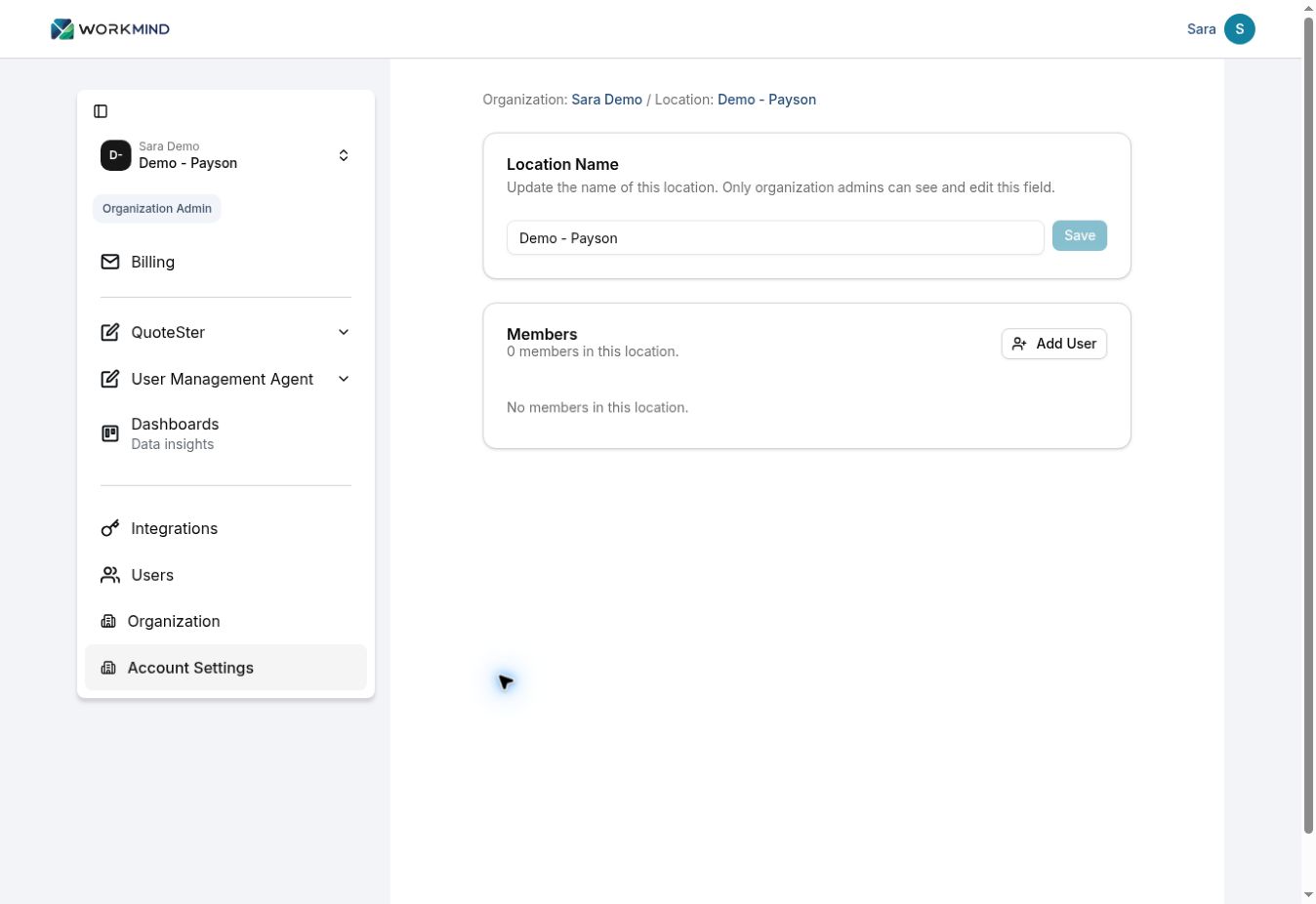
Before acting, check the organization and location names. In Account Settings, the header identifies both Organization and Location.
Assign an Organization Role
An Organization Admin manages organization invitations. Use an organization role when a person needs organization-wide administration or visibility.
Select the intended organization and open Organization in the sidebar. In Members, choose Invite Member.
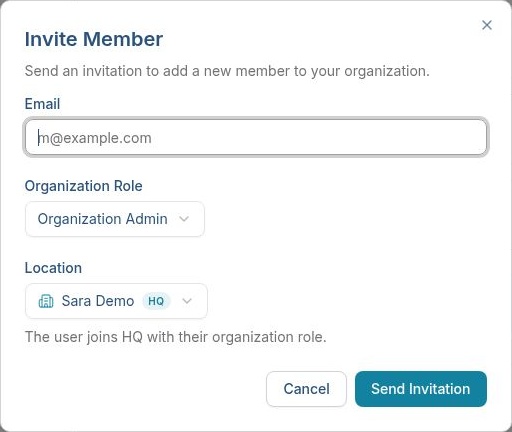
Enter the person's email address and open Organization Role. Choose Organization Admin for organization-wide management or Organization Member for organization-wide viewing.
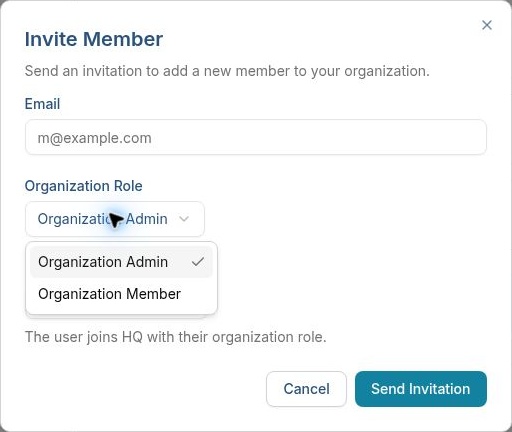
Check the email address, organization role, and displayed HQ location. The form states that the user joins HQ with their organization role. Click Send Invitation when the details are correct.
Assign a Location Role
An Organization Admin, or a Location Admin for the selected account, can manage its membership. After creating a sub-account, we recommend adding the person who will run it as a Location Admin, such as the franchisee responsible for that account.
Select the account where the person needs access, either HQ or a sub-account, and open Account Settings. Confirm the Organization / Location header.
In Members, click Add User and enter the person's email address.
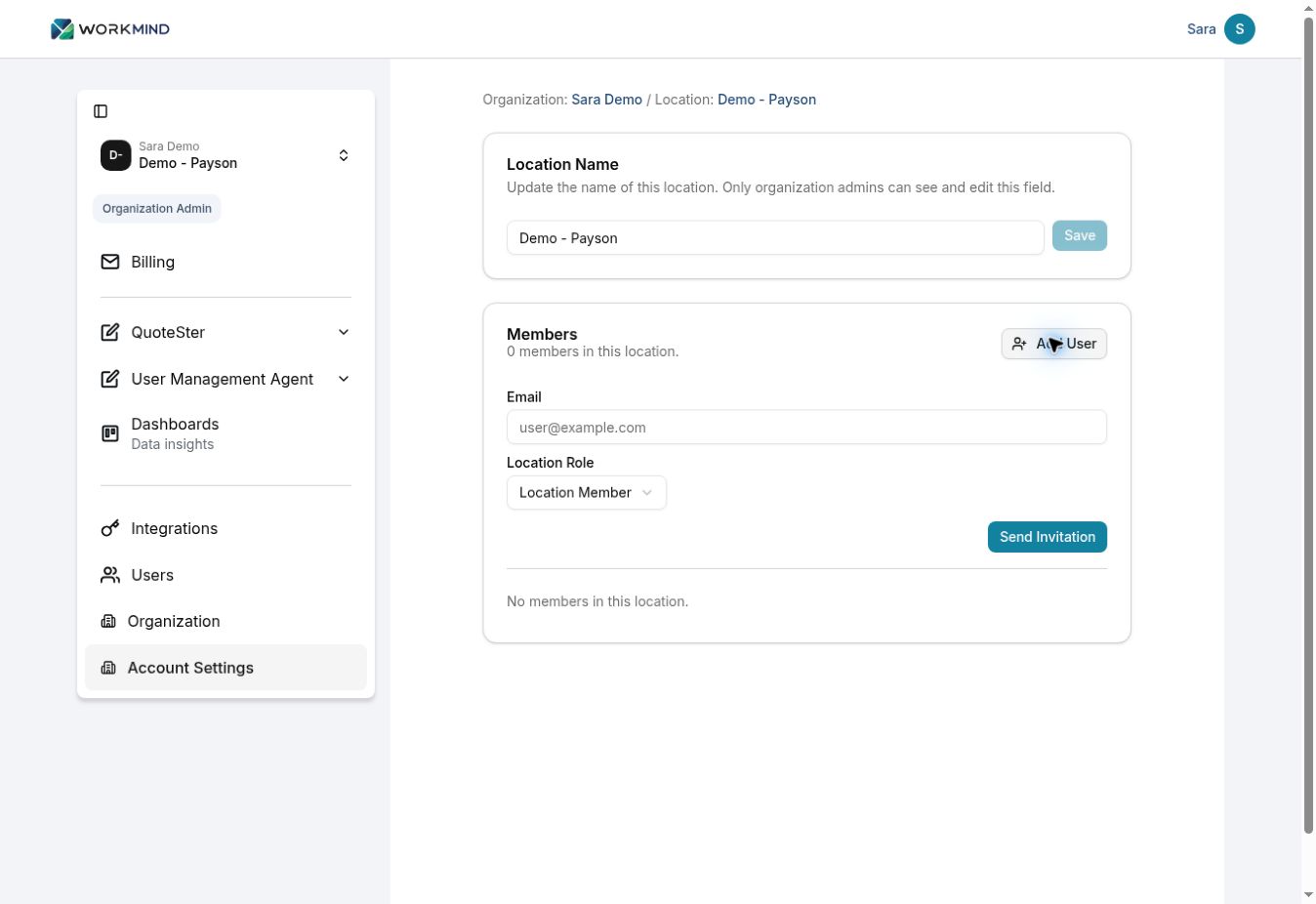
Open Location Role. Choose Location Admin for someone managing the account or Location Member for someone using its products.
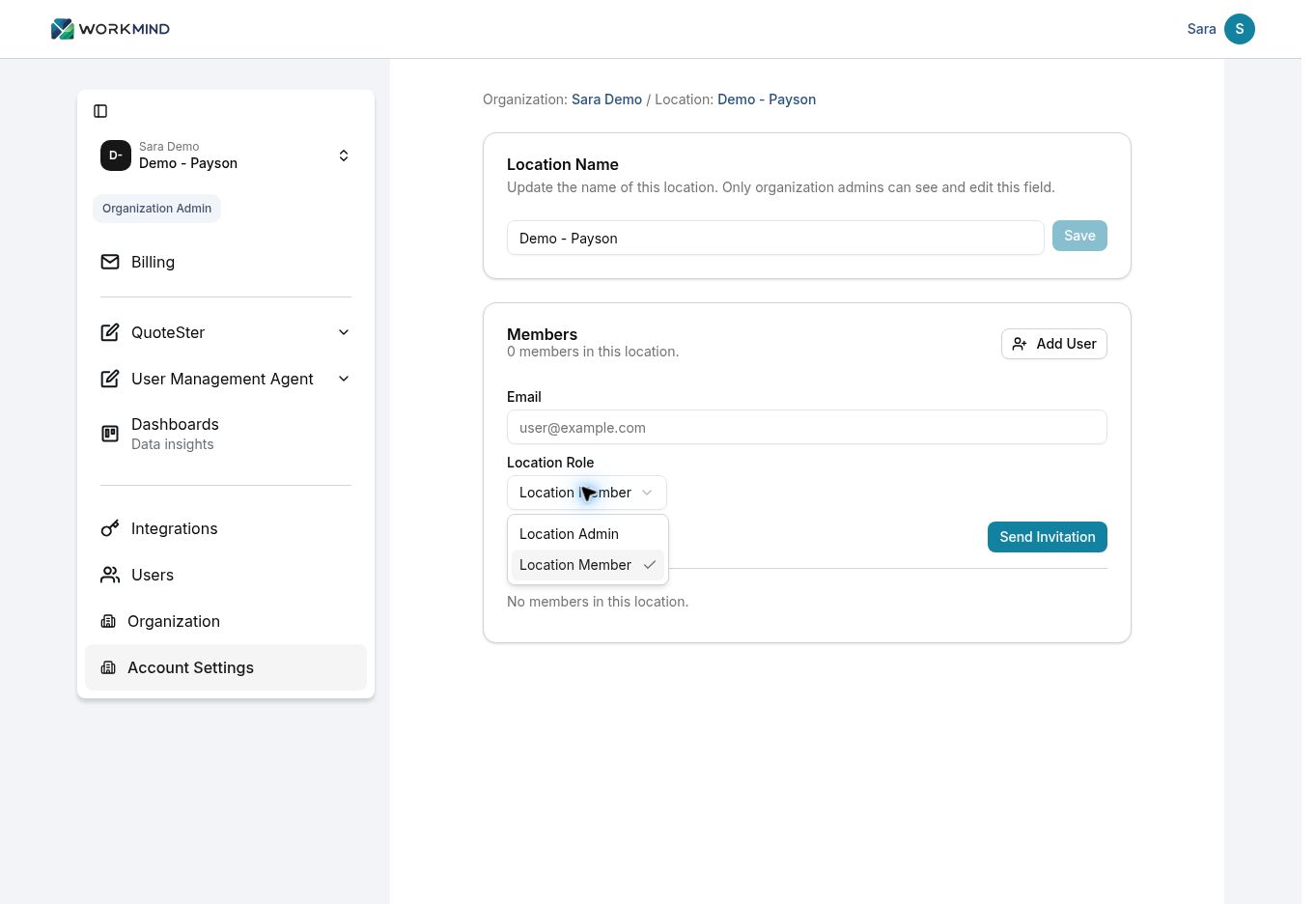
Review the email address, selected location, and role, then click Send Invitation.
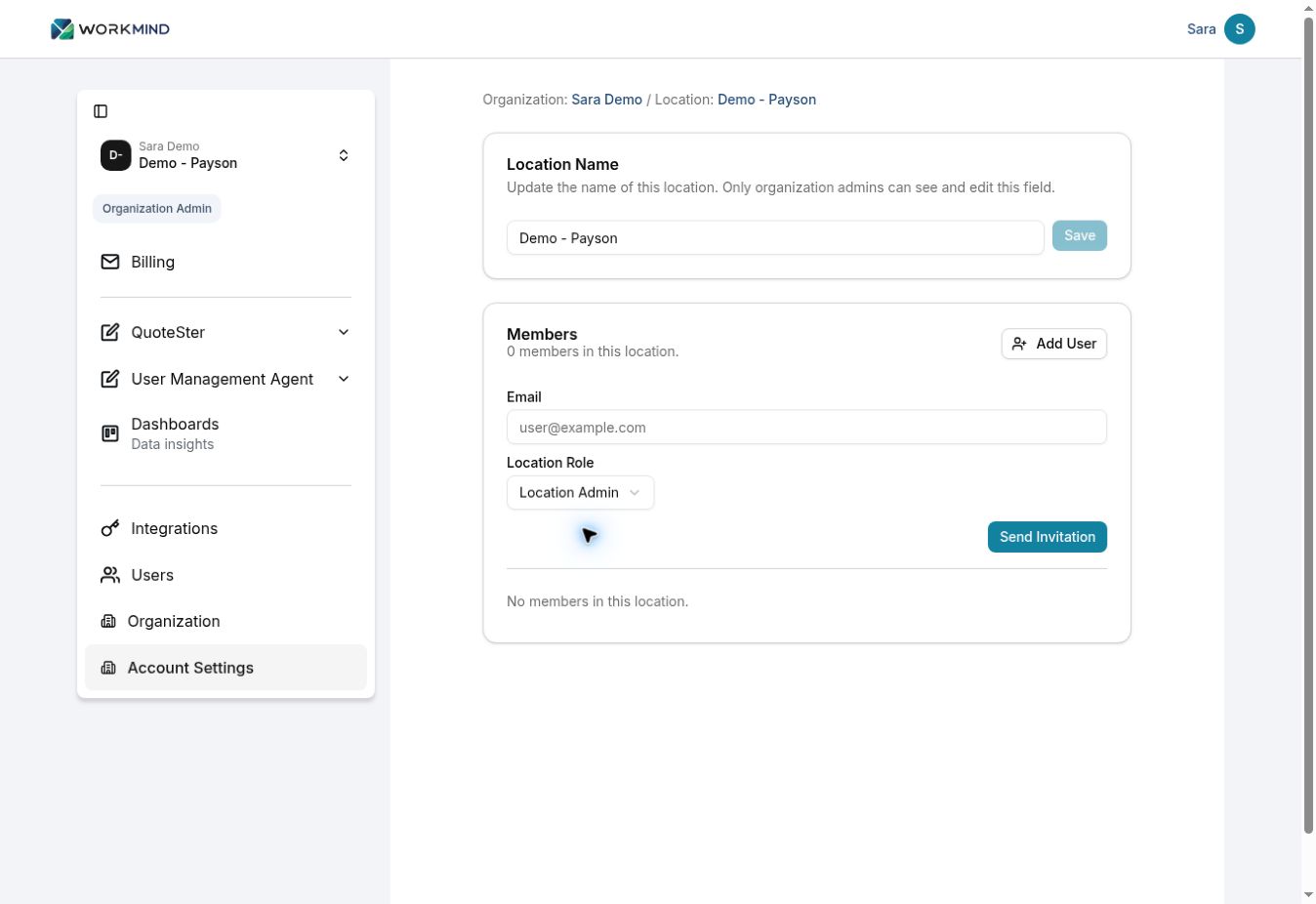
After the person joins, review the location's Members list and confirm their role matches the responsibilities you intended.
WorkMind sends an invitation to a new user. Someone already in the organization may be added directly to the location. An existing location membership does not require a duplicate invitation. Adding a location user does not require granting an organization-wide role.
Choose Roles for Your Business
- Single-location business: use Organization Admin for setup and administration, Location Admin for an additional manager of the operating account, and Location Member for product users.
- Franchise: keep corporate administration with Organization Admins. Give franchisees or location managers Location Admin in their locations, and staff Location Member for product use.
- Corporation: use Organization Admin for central administration and Organization Member for organization-wide viewing. Assign location roles according to each operating team’s responsibilities.
For someone responsible for several locations, review membership in each location. A person can administer one location and be a member of another. The sidebar badge summarizes a role; it does not replace checking permissions for the selected account.
Understand Administrative Boundaries
- Create or rename a sub-account: requires Organization Admin. Location Admin cannot create sub-accounts, and only organization admins can see and edit Location Name.
- Manage members: organization membership requires Organization Admin. Location membership can be managed by an Organization Admin or a Location Admin for that location.
- Configure products or save integration credentials: requires an administrator with access to the selected account. Location Member can use available products but cannot save integration credentials.
- Manage billing: Organization Admin manages organization coverage; Location Admin manages subscriptions owned by the location. If the organization pays for a location, the location administrator cannot change the organization’s subscription or payment arrangement.
Roles and Product Access
Your role determines what you can do. The account’s subscription or trial coverage determines which products are available, called an entitlement in WorkMind.
This guide covers WorkMind portal roles. Employee access policies managed by User Management Agent are separate; see Using UMA for that workflow.
Resolve an Access Problem
- Confirm the active organization and location.
- Ask the appropriate administrator to check membership and role for that account or organization.
- If the product itself is unavailable, check the selected account’s subscription or trial coverage too.
A message such as “You do not have permissions to set integrations. Please contact your administrator.” means the user cannot perform that administrative action. Ask the administrator to review the role rather than assuming a subscription change will fix it.