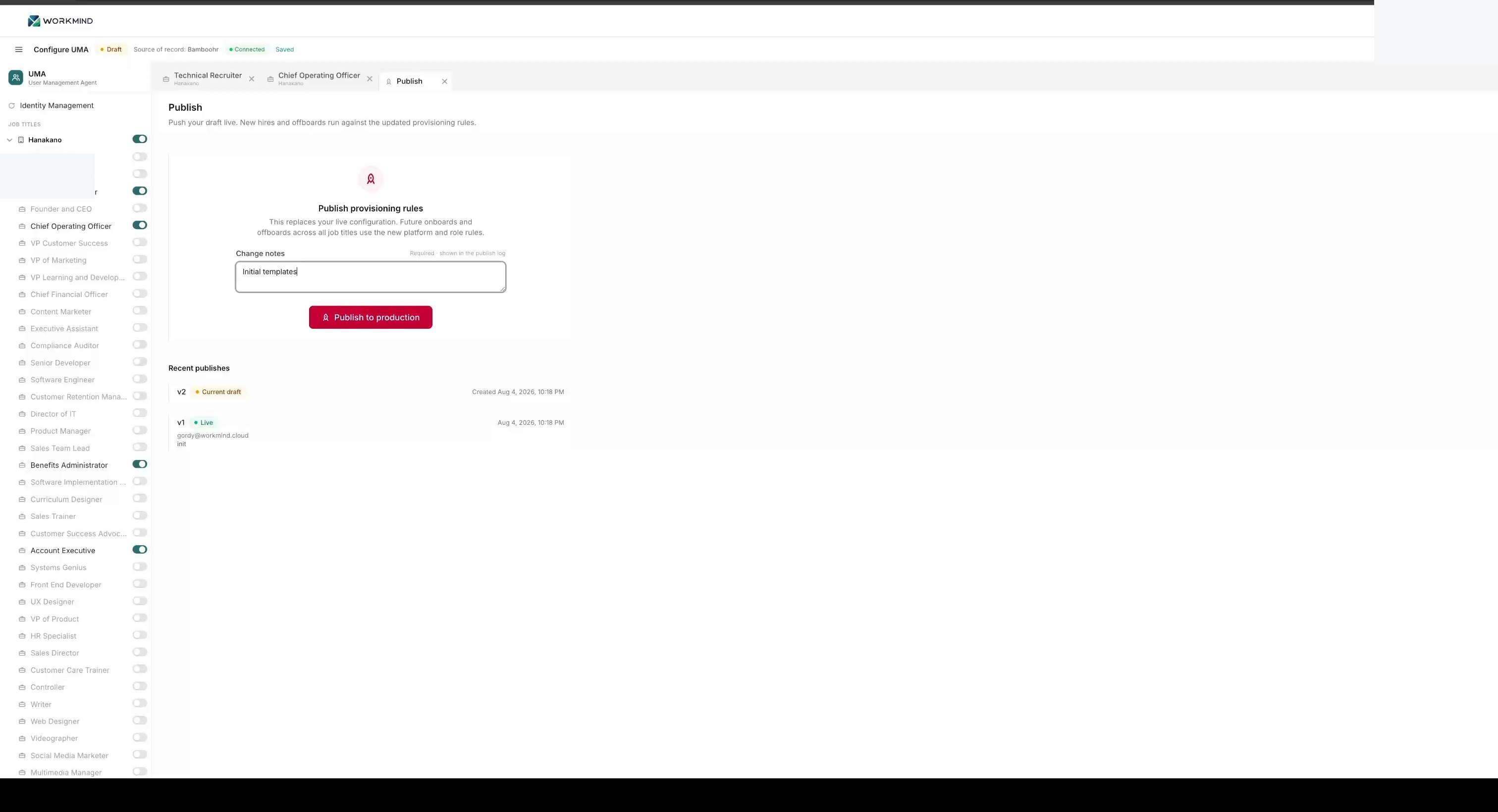

Sync BambooHR Roles with UMA
Import BambooHR job titles into UMA, configure access by role, and publish the changes.
Connect BambooHR to WorkMind before starting. See the BambooHR connection guide. If roles will manage Google Workspace or Slack access, connect those services first using the Google Workspace and Slack guides.
Sync and Review Roles
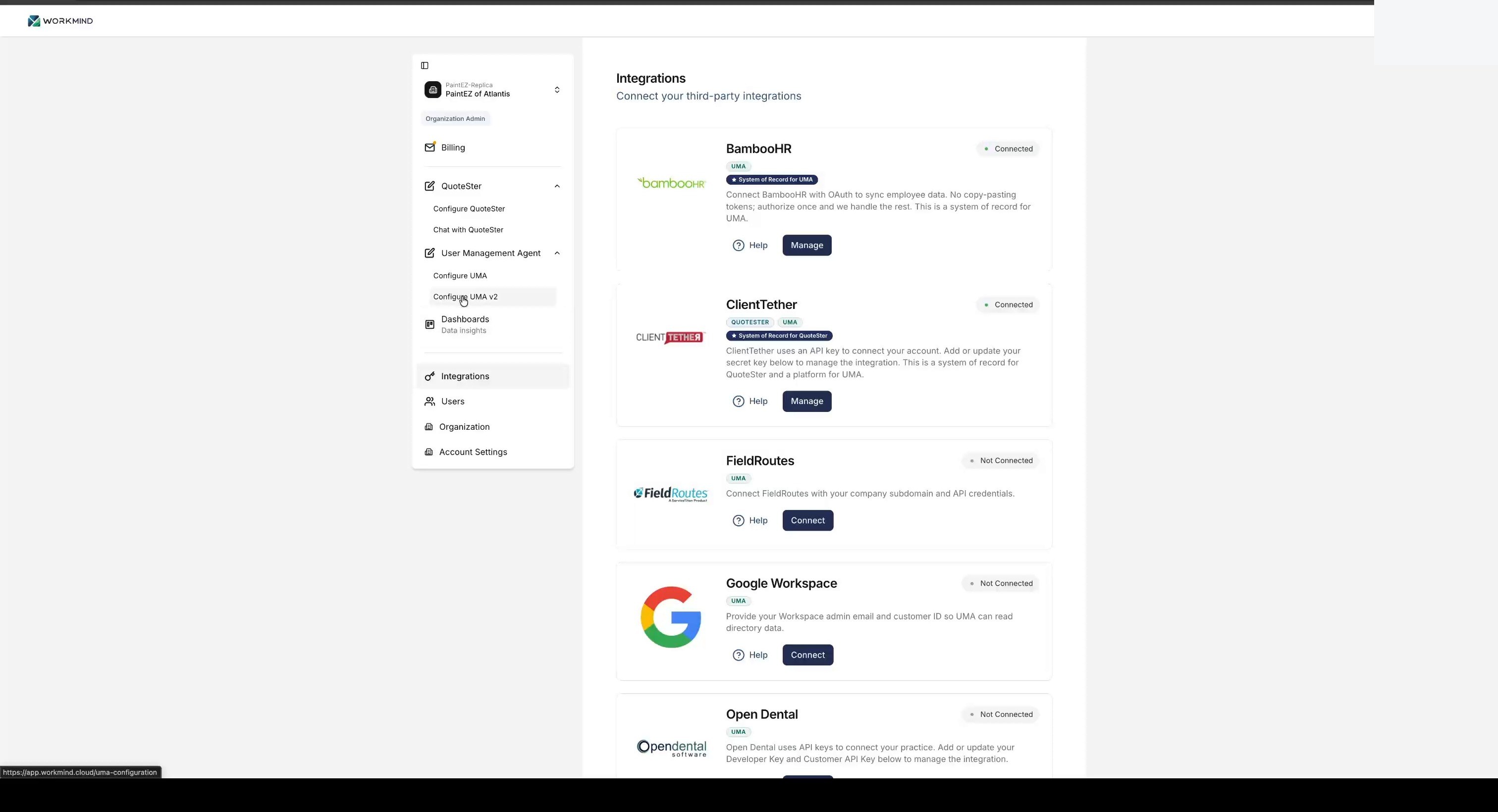
Open the integration menu and choose Configure UMA.
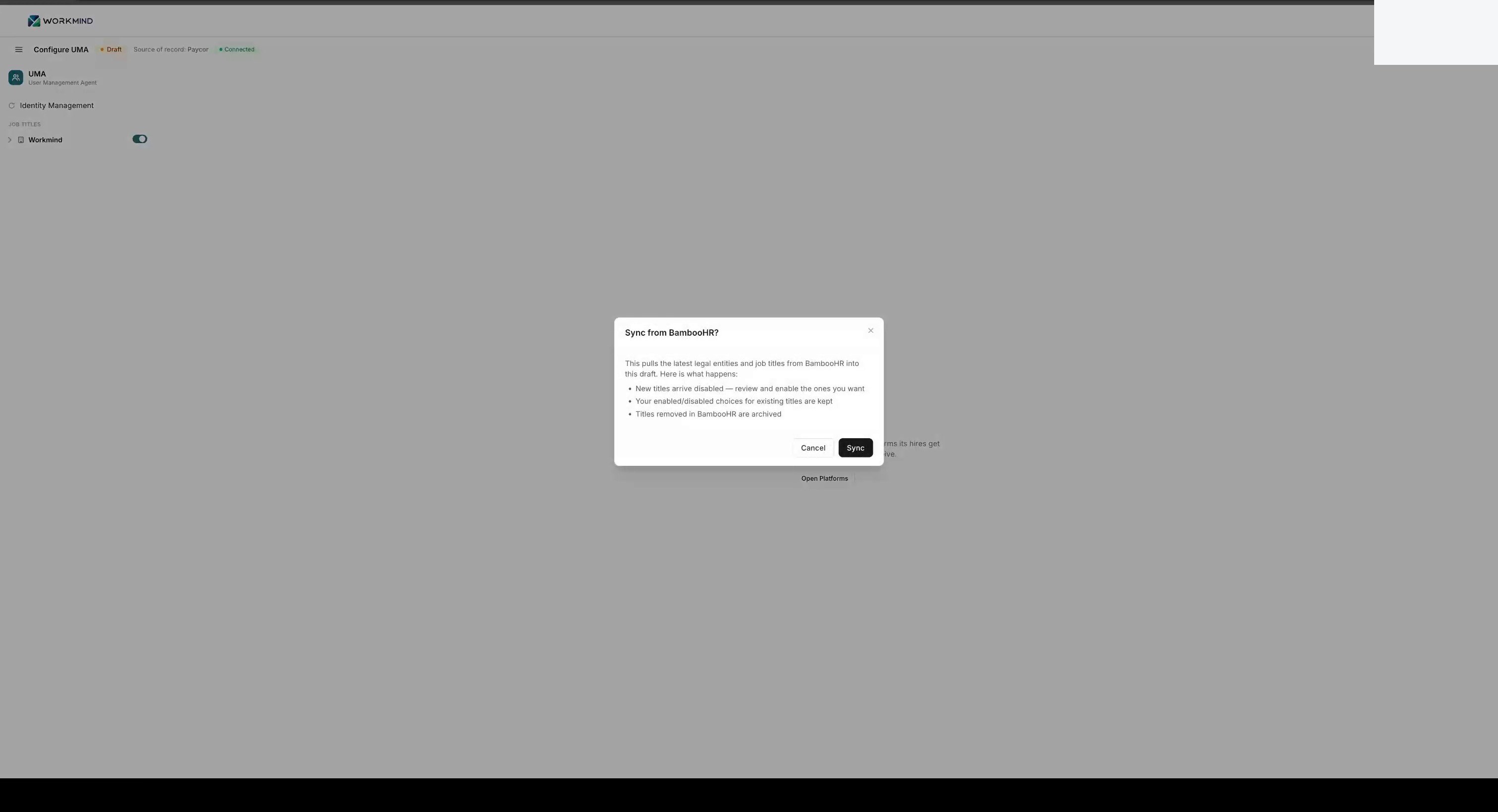
Click Sync to import BambooHR job titles and employee information.
Confirm the BambooHR account appears as connected in WorkMind.
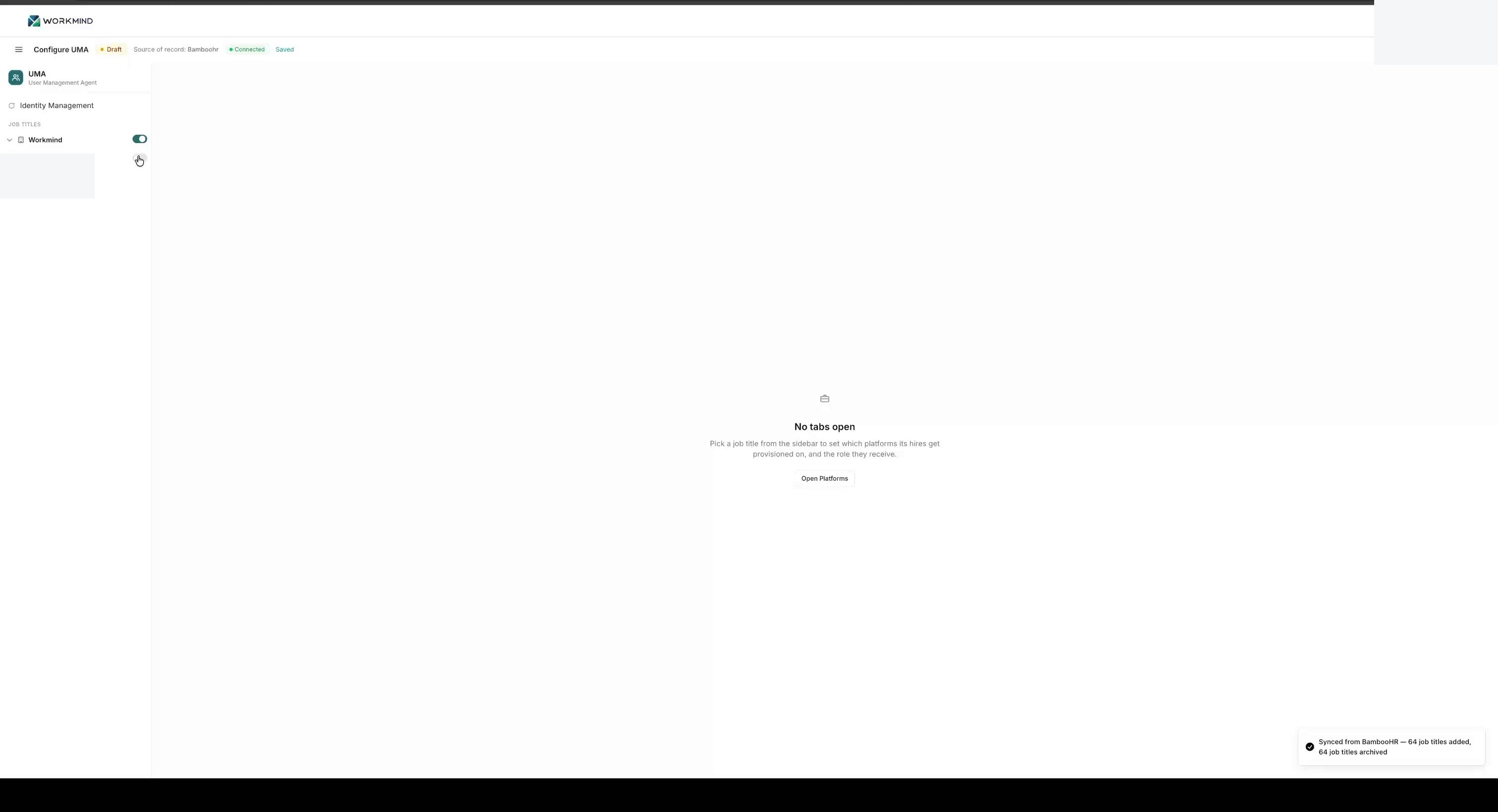
Review the imported job titles. BambooHR may provide default titles as a starting point.
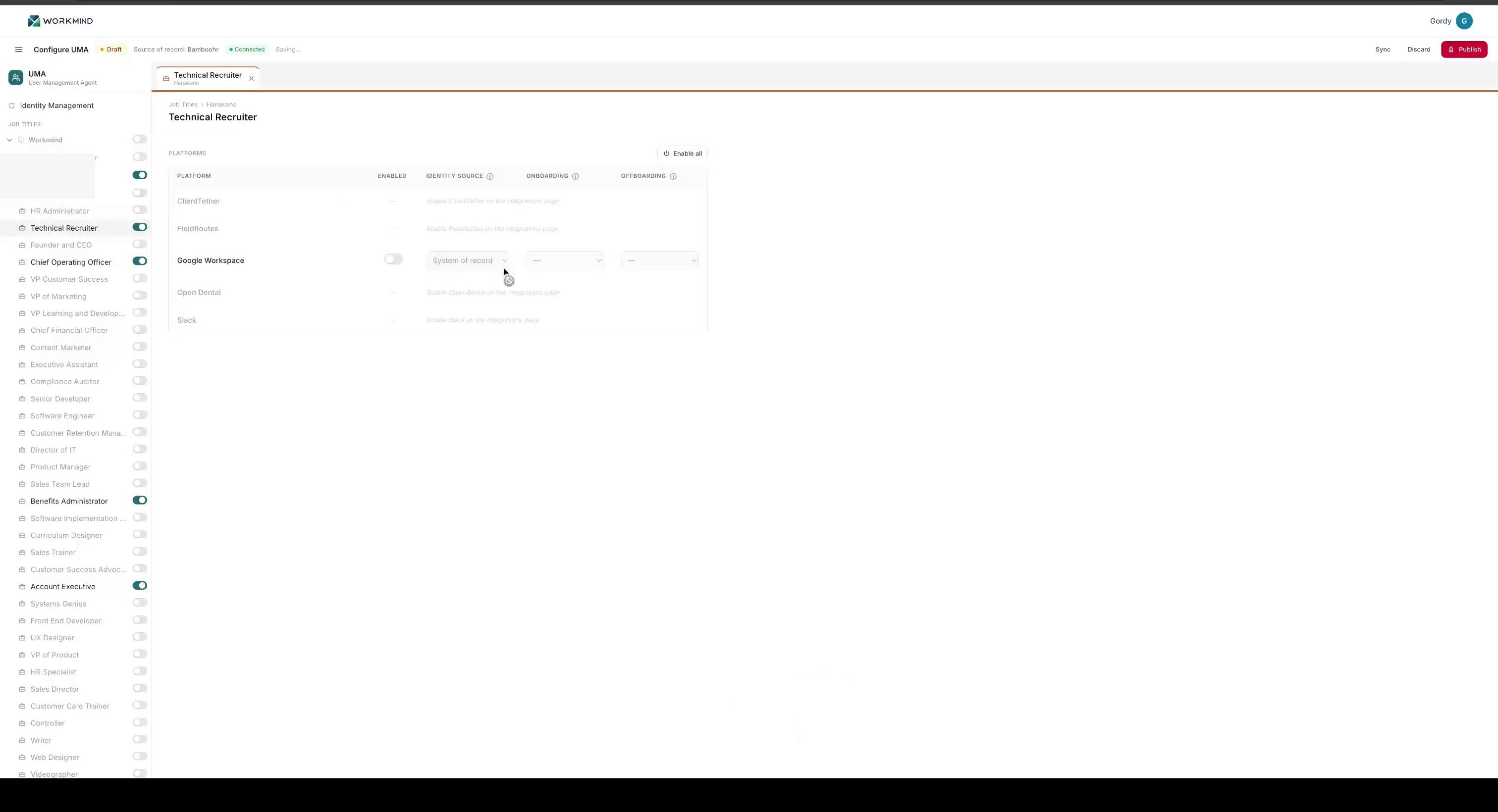
Use the BambooHR org chart to understand how employees are arranged in the organization.
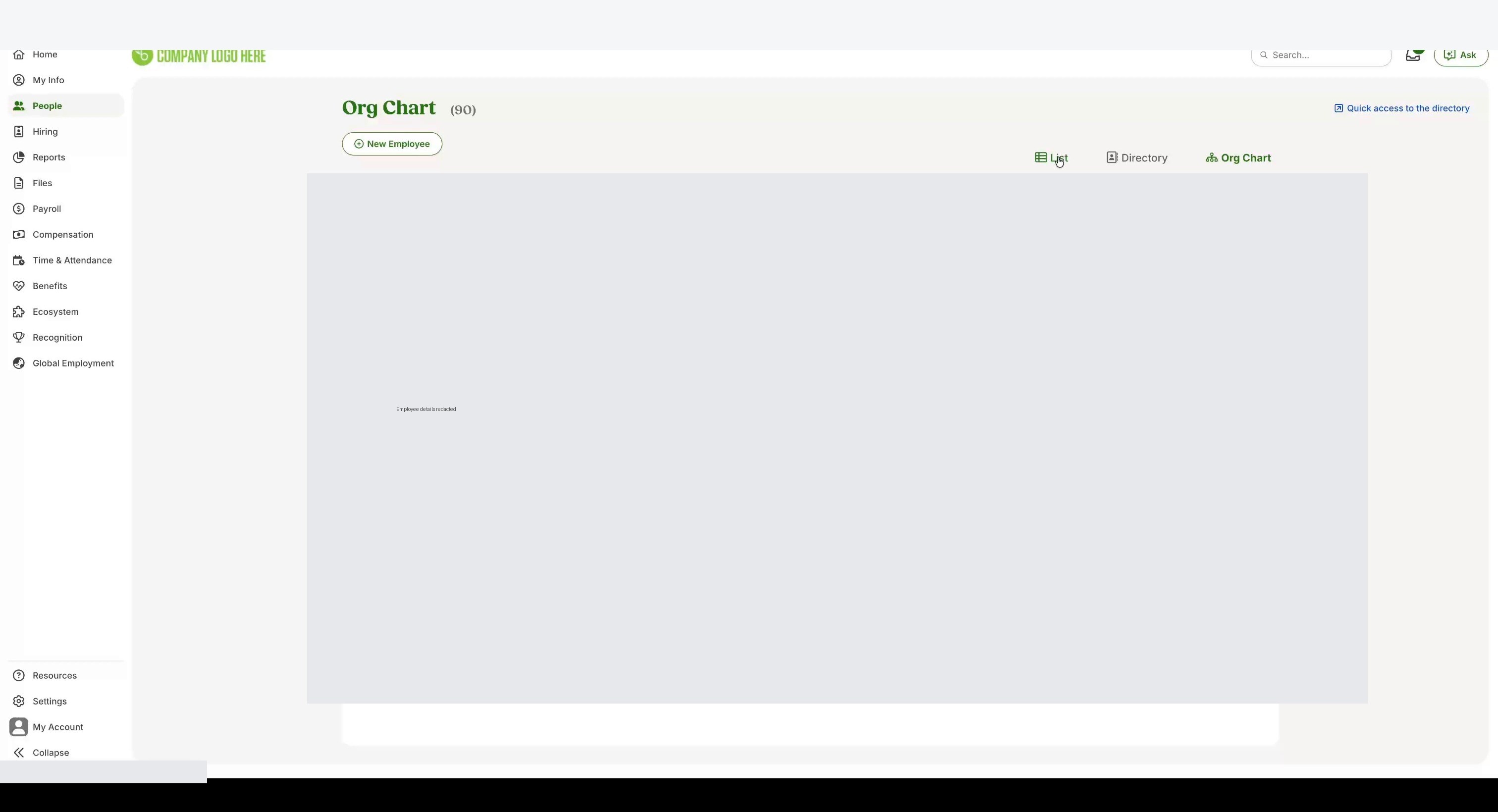
Configure and Publish Role Access
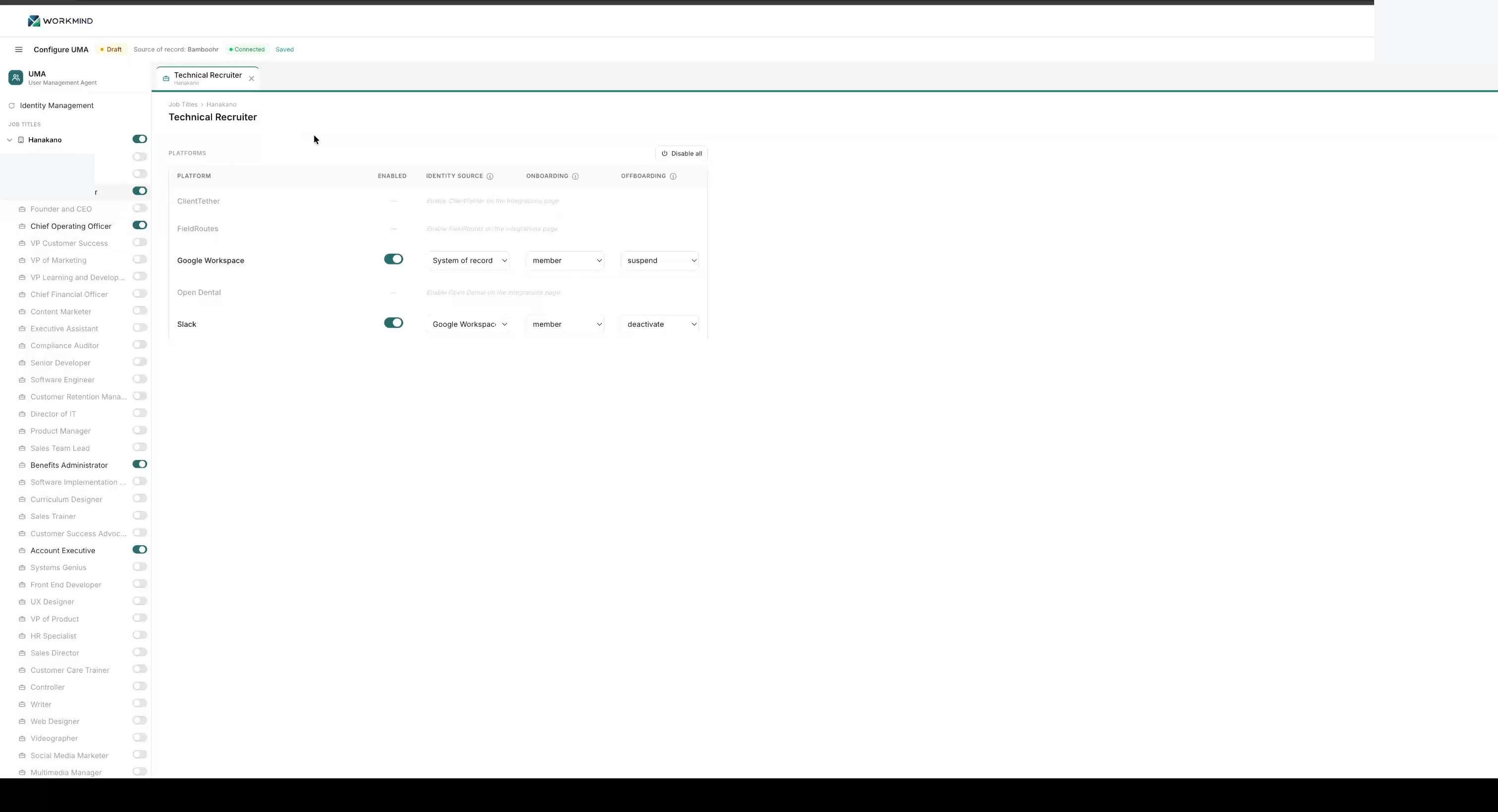
Select a job title, such as Accountant, to configure what members of that role can access.
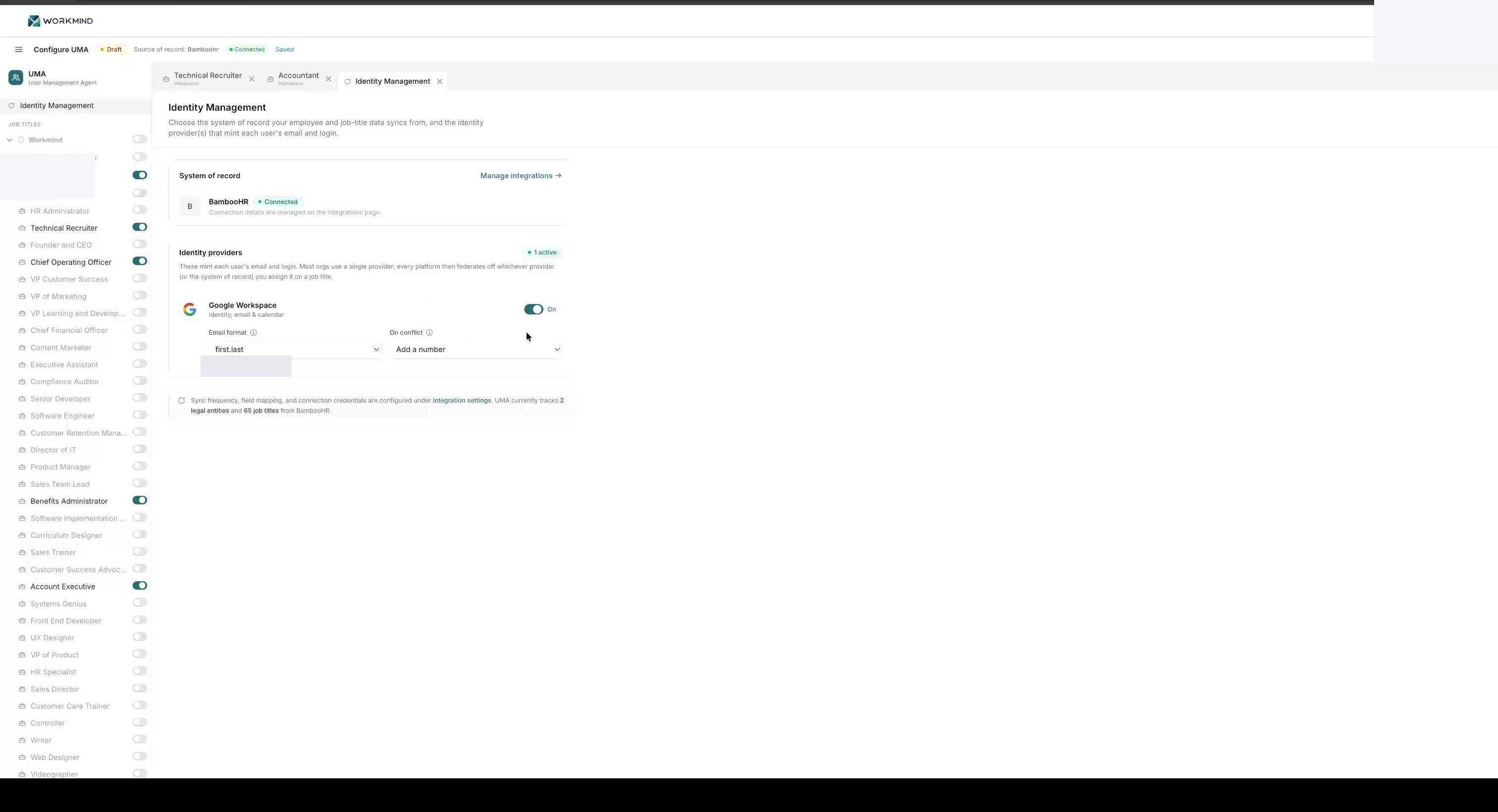
Enable the Google Workspace and Slack access toggles needed for the role.
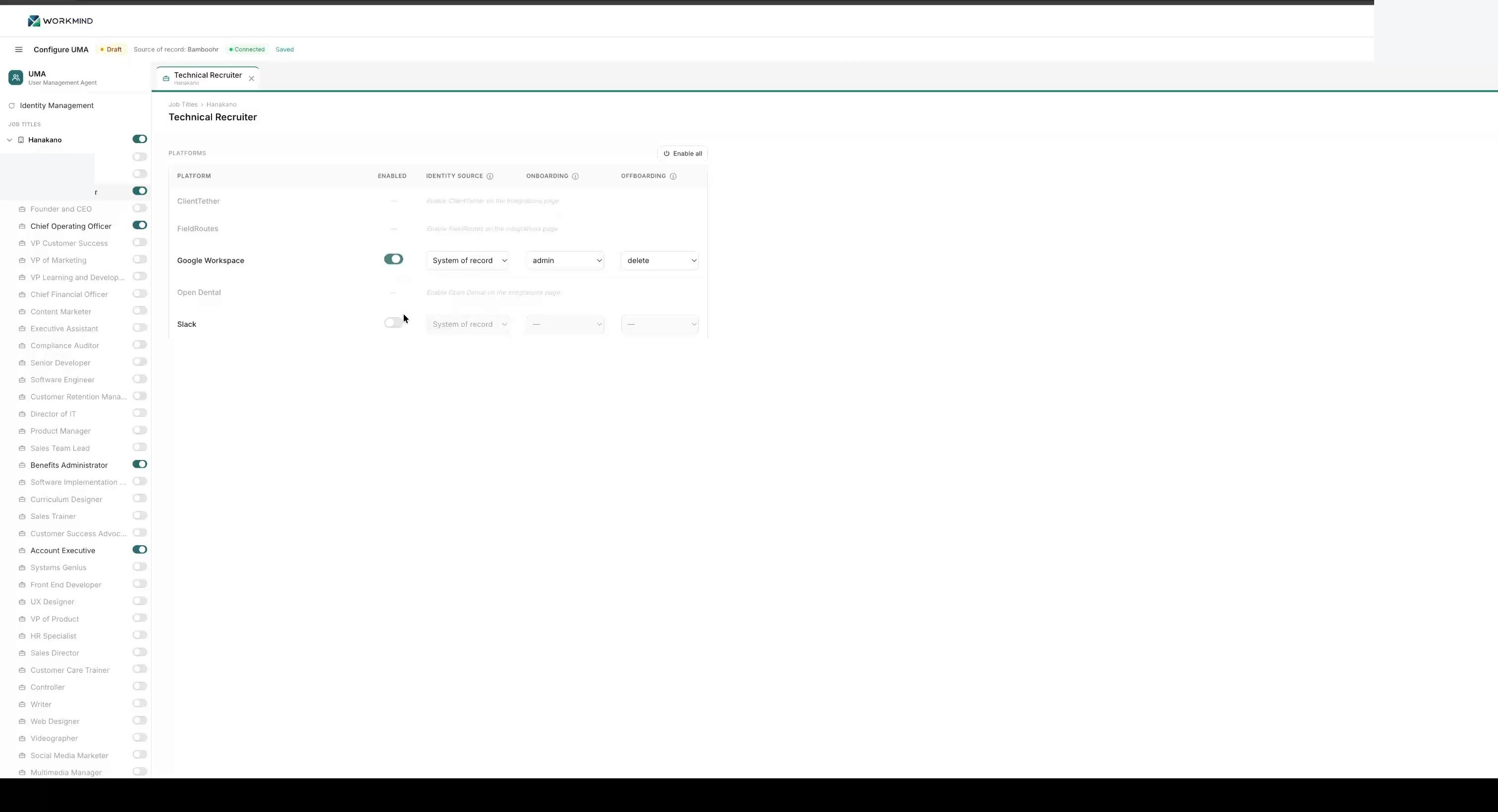
Use the access menus to choose the appropriate membership level. Configure suspension or deactivation behavior for employees who leave the organization.
Add a short note describing the configuration, then click Publish to make it active for your team.