
Configure QuoteSter in WorkMind
Connect a System of Record, sync services, configure quotes, and publish.
QuoteSter requires a connected System of Record. First connect ClientTether to WorkMind and review Known ClientTether Issues. Then sync the services you want to configure below.
Getting Started and Syncing
Plan the Configuration
Review how proposals are built today, including service categories, line items, pricing, and approval steps. Decide what should carry over before importing.
Configuration owner
Have someone familiar with estimating or proposal workflows lead the configuration.
Review Duplicate Names
Before importing, review the duplicate-name behavior in ClientTether. Repeated names can be appropriate when they describe the same kind of choice in different parts of a workflow, such as Primer Type or Paint Type. Focus on names that make separate records hard to distinguish, such as an old and rebuilt Hard Flooring bid type with different categories and line items.
Identify the bid types, categories, and line items you intend to configure. WorkMind imports the names as ClientTether provides them and cannot infer which duplicate you meant. Use clear, distinct names wherever duplicates could cause confusion. Renaming or cleaning up records in ClientTether is optional if your team can reliably distinguish them.
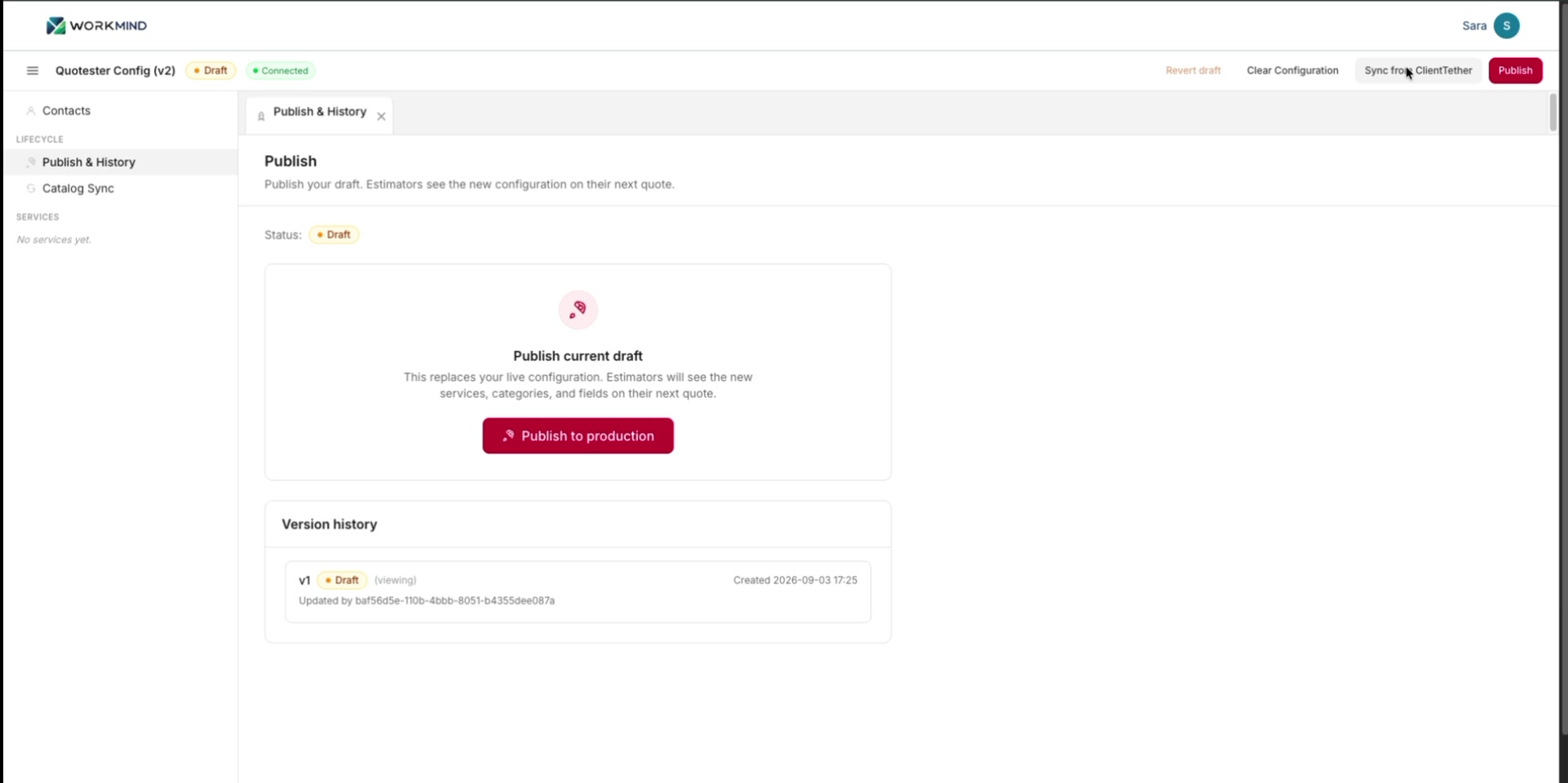
Sync Services
To import services from ClientTether, click Sync from ClientTether at the top right of the screen. You can also start a sync from the Catalog tab.
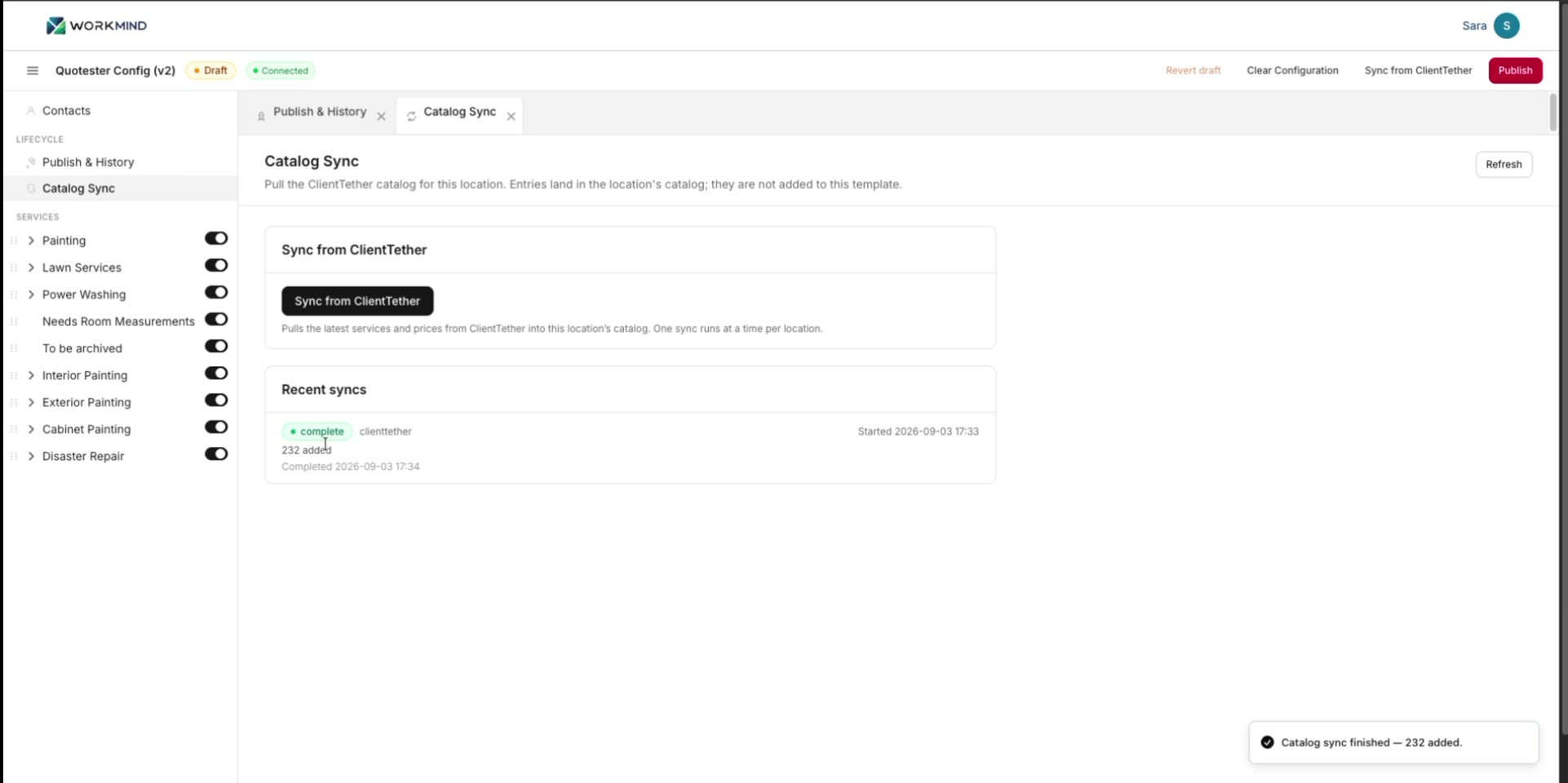
Review Sync Results
Check the Running Update message for sync status and the number of new items, categories, and bid types added.
Cleaning Up Your Workspace
Choose Active Services
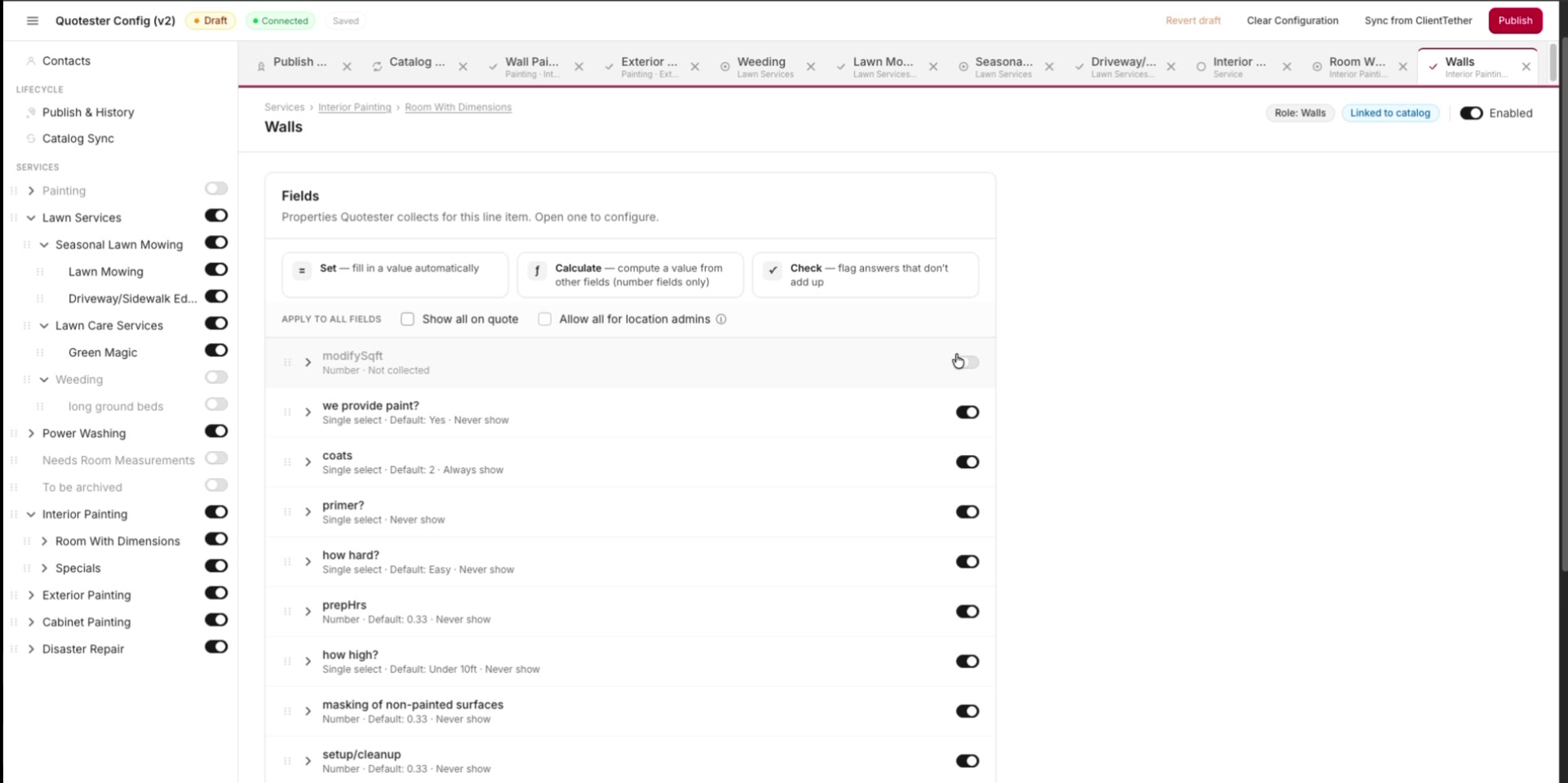
Enable only the services your team currently uses. Turn off the toggles for unused services.
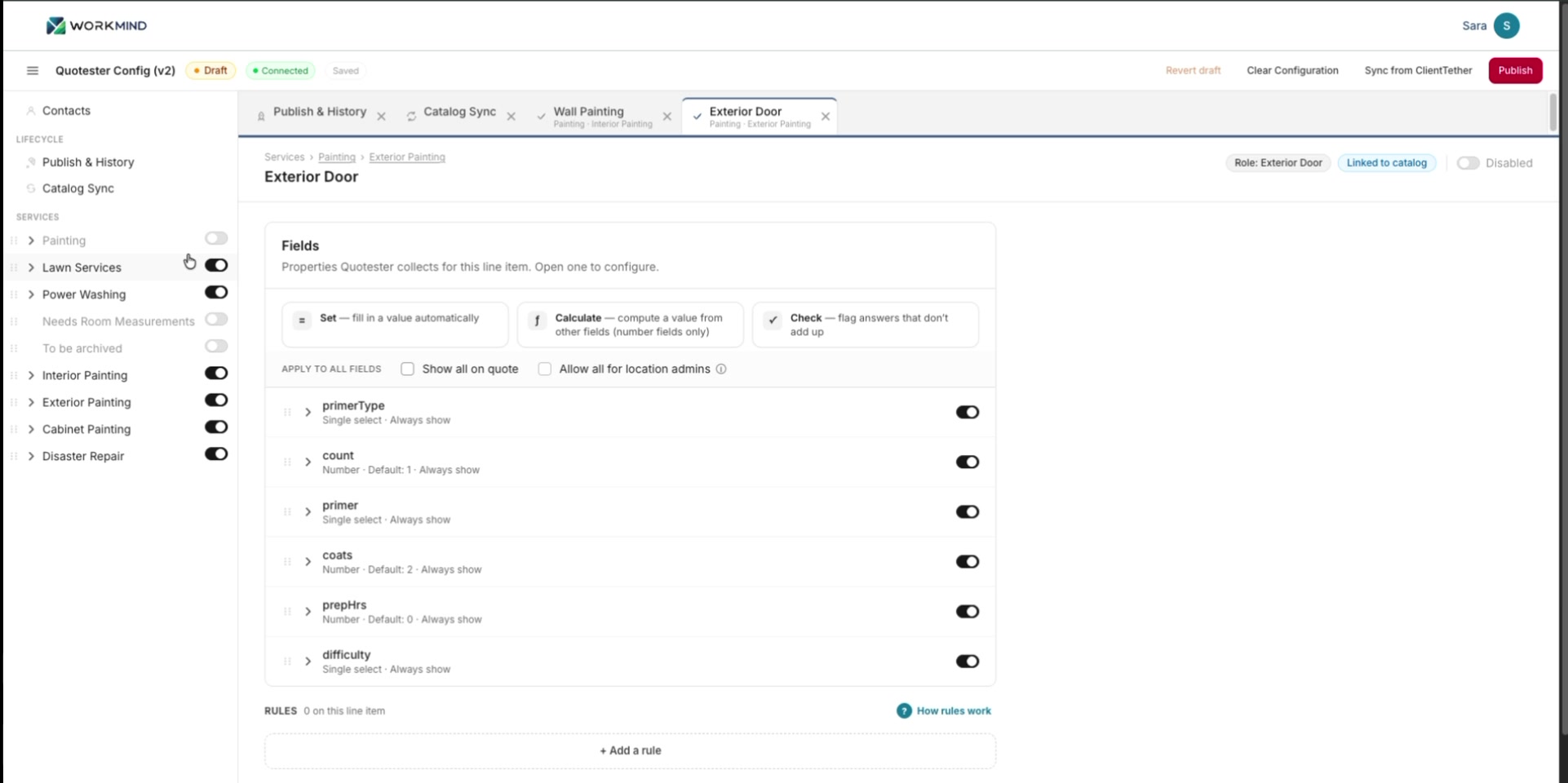
Set Default Values
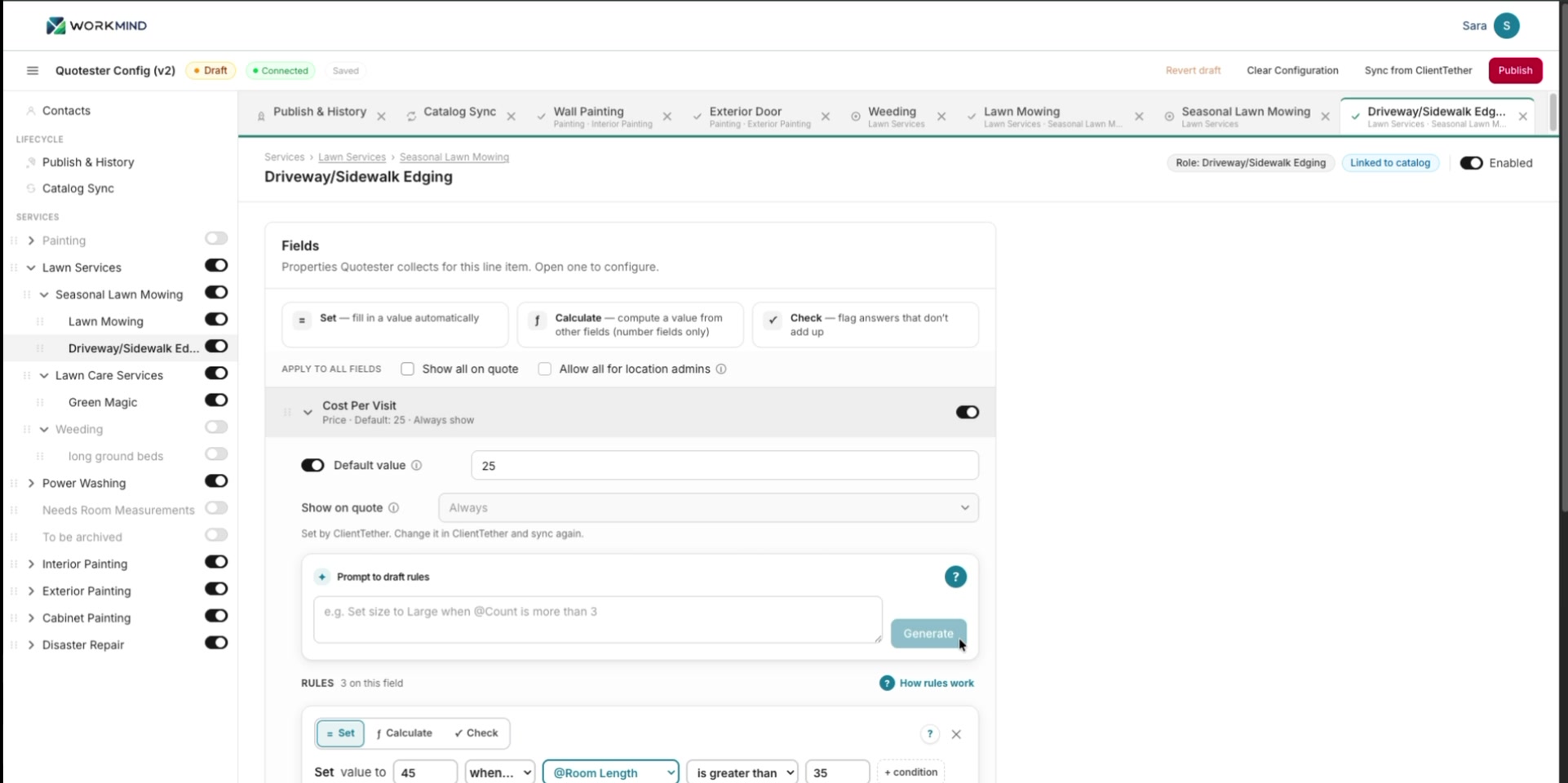
For fields that consistently start at the same price, enter that price in Default Value so it fills in automatically.
Keep Field Changes Focused
QuoteSter imports many field settings automatically. Change imported fields only when there is a clear operational need, such as permissions, visibility, dependencies, or a default value. Unnecessary changes make the setup harder to maintain.
Keep Structures Consistent
Use consistent category names and proposal structures wherever they represent the same service or workflow. Clear naming helps teams distinguish the records they intend to use.
Creating Custom Rules
Describe and Add a Rule
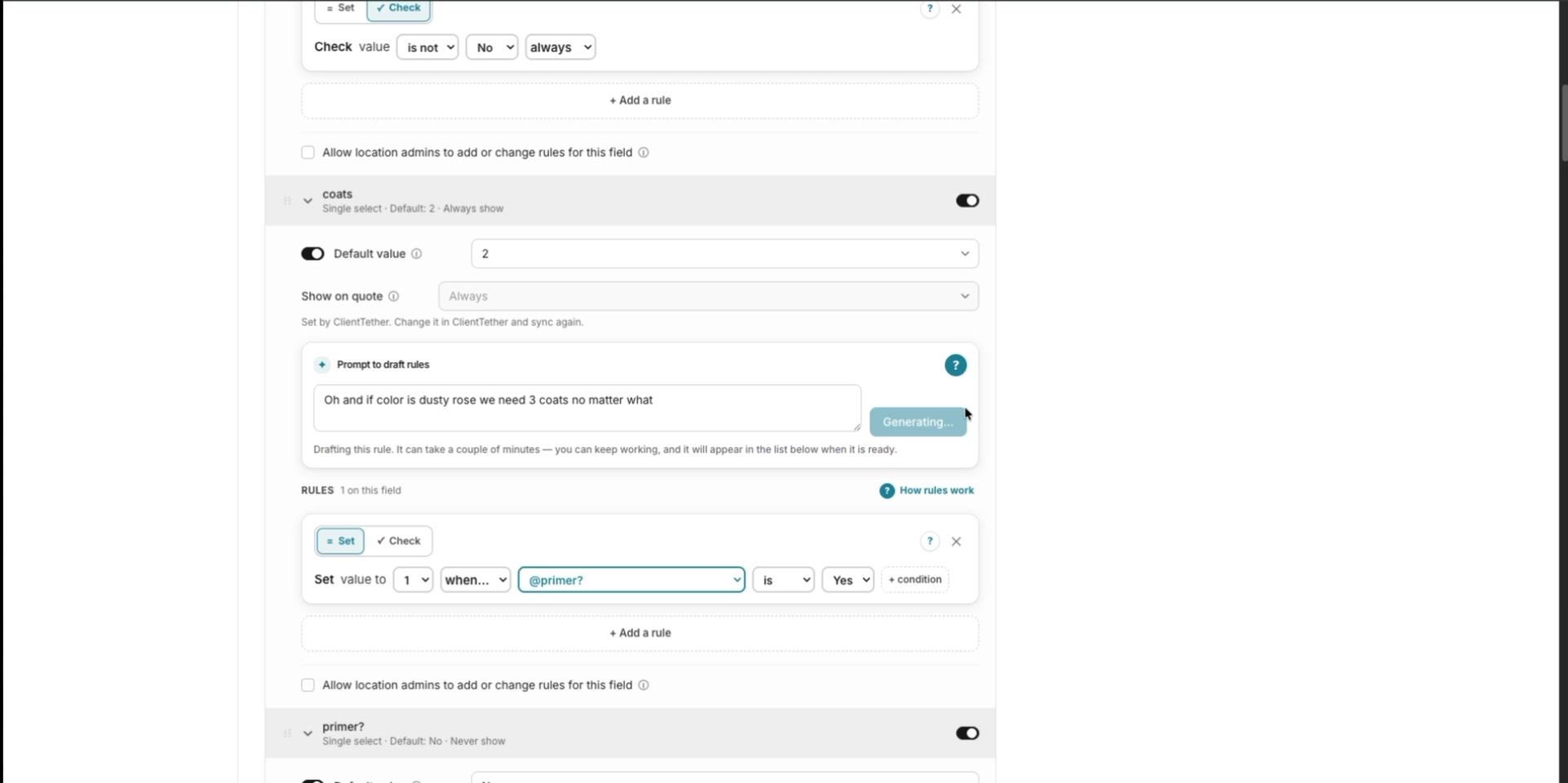
Write a clear sentence in the text prompt box explaining what the rule should do. Make the logic understandable to a new team member.
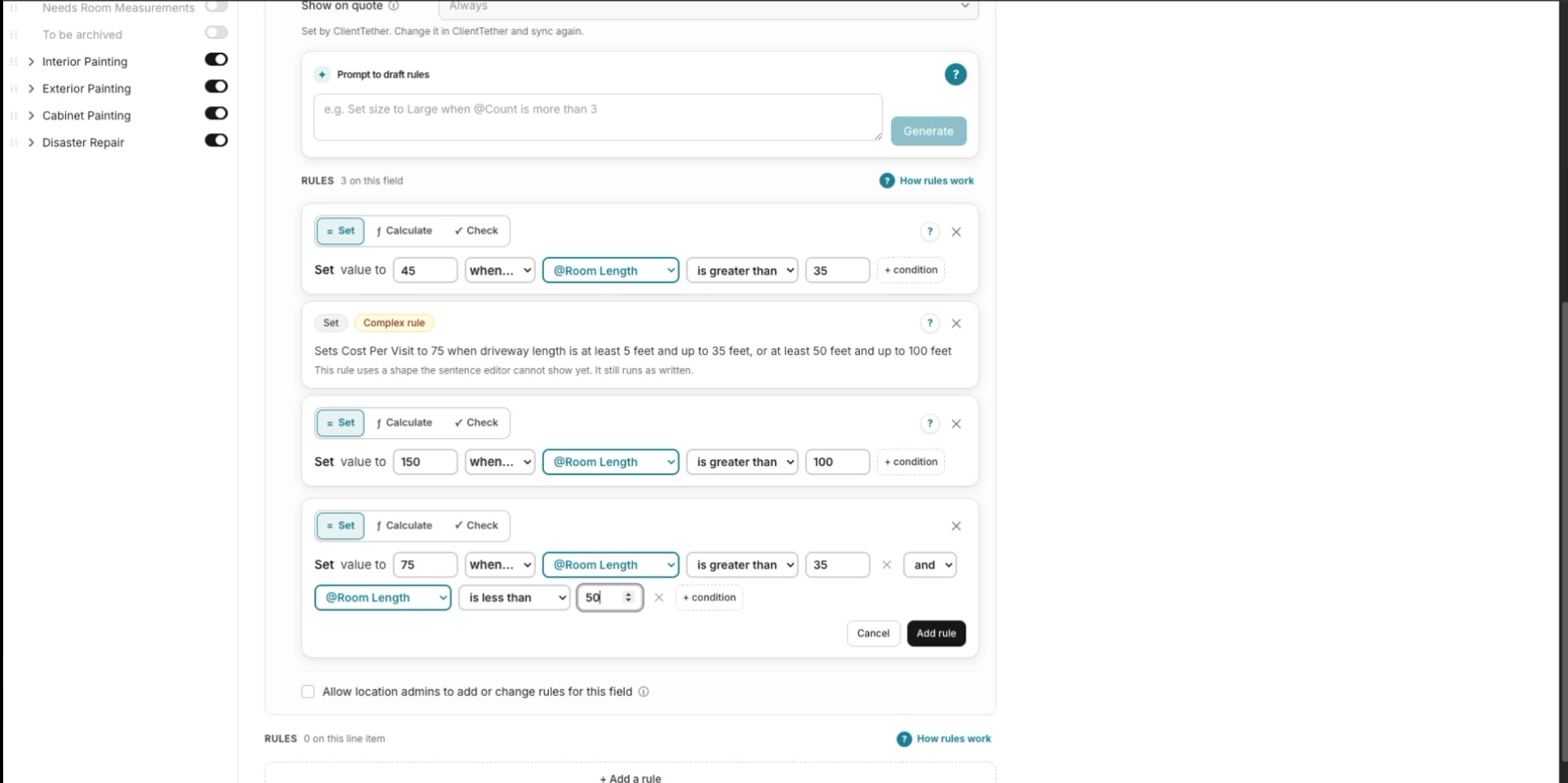
Click Add a Rule to open the rule builder.
Choose a Rule Type
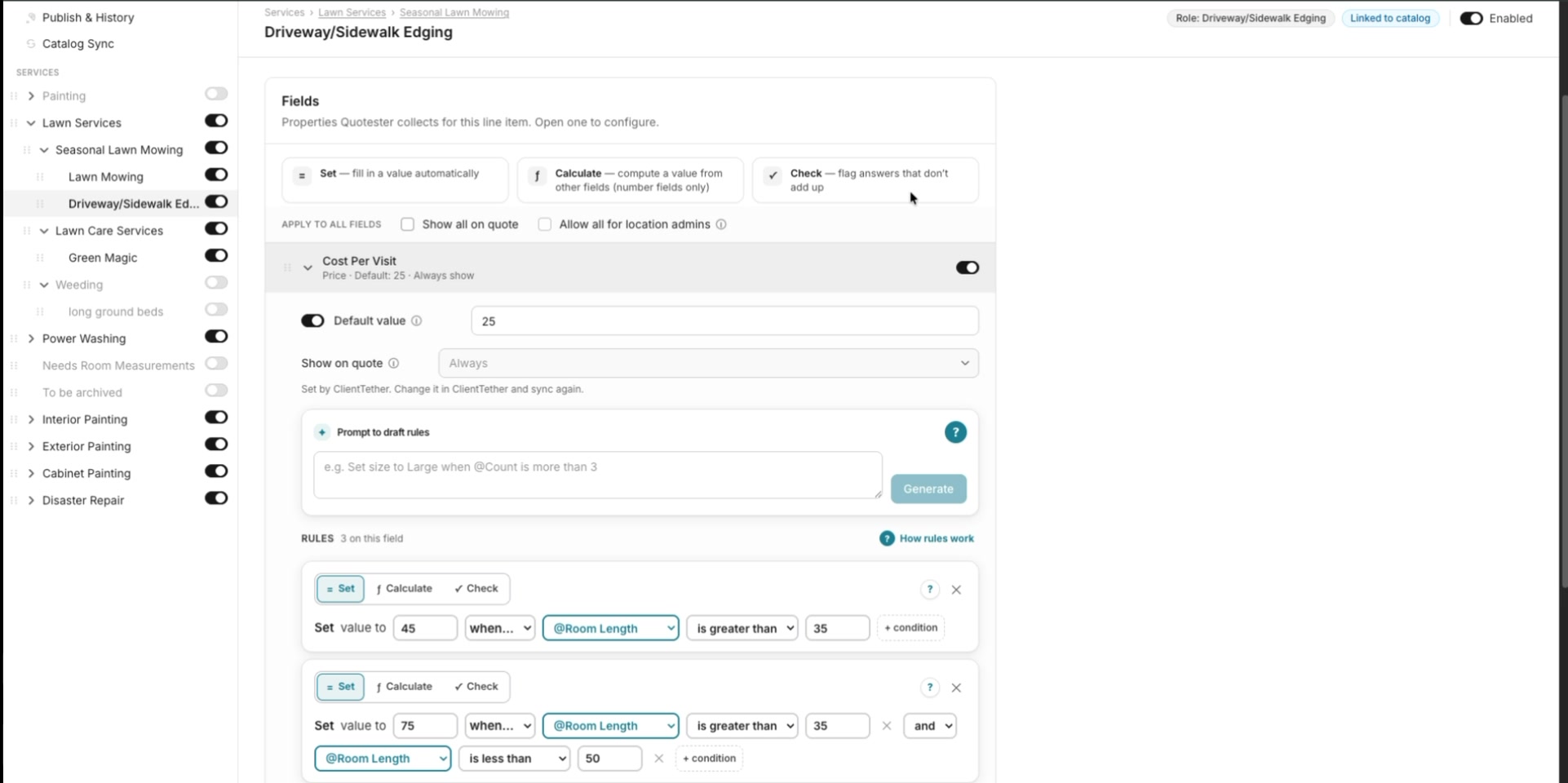
Choose the rule type that matches the intended behavior:
| Rule type | Use it to |
|---|---|
| Set | Fill in a specific value when matching conditions are met. |
| Calculate | Combine values through a formula, such as square footage and ceiling height. |
| Check | Flag an answer with a warning without changing the calculation. |
Set fills in a specific value when matching conditions are met.
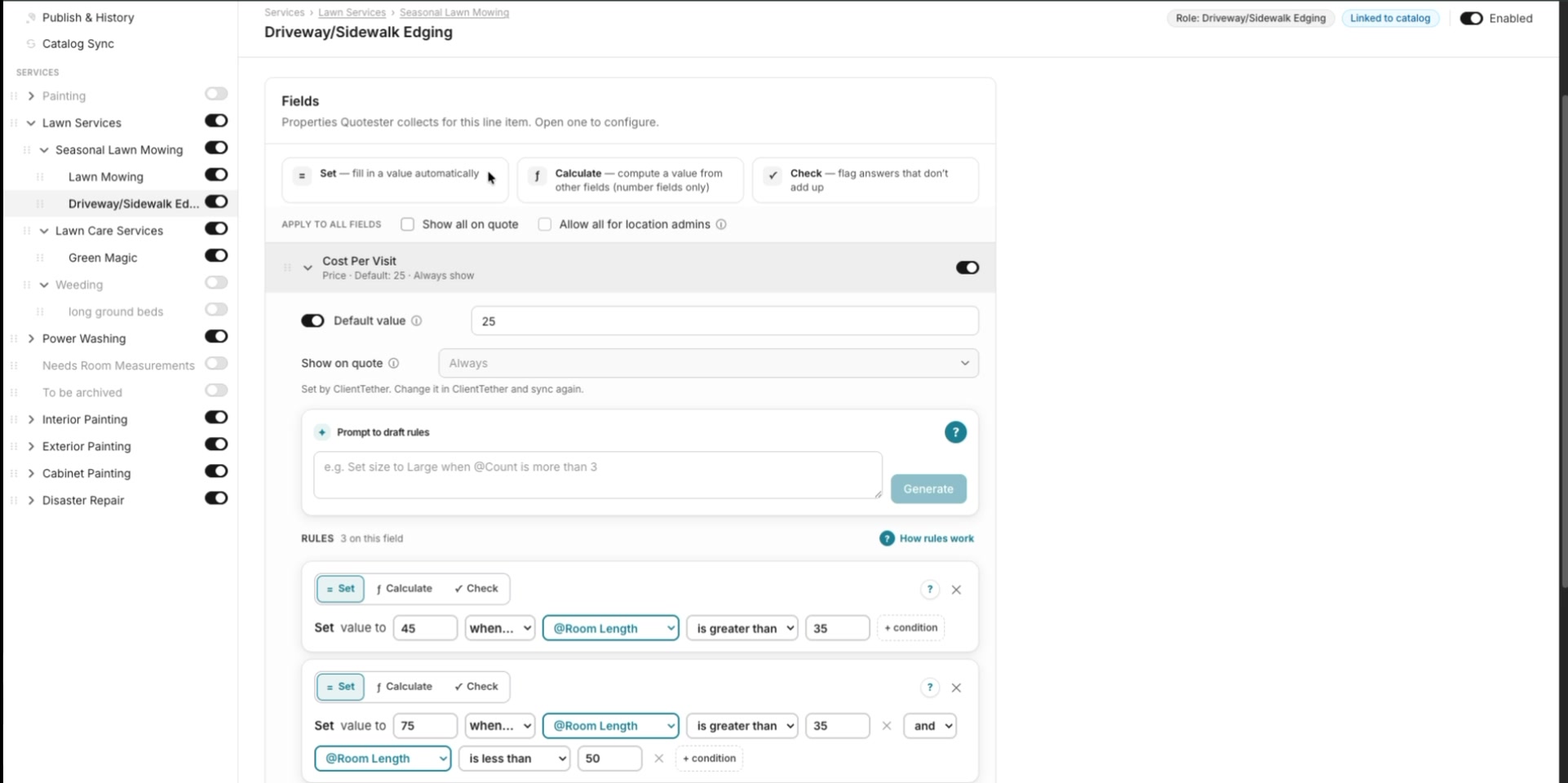
Calculate combines field values through a formula.
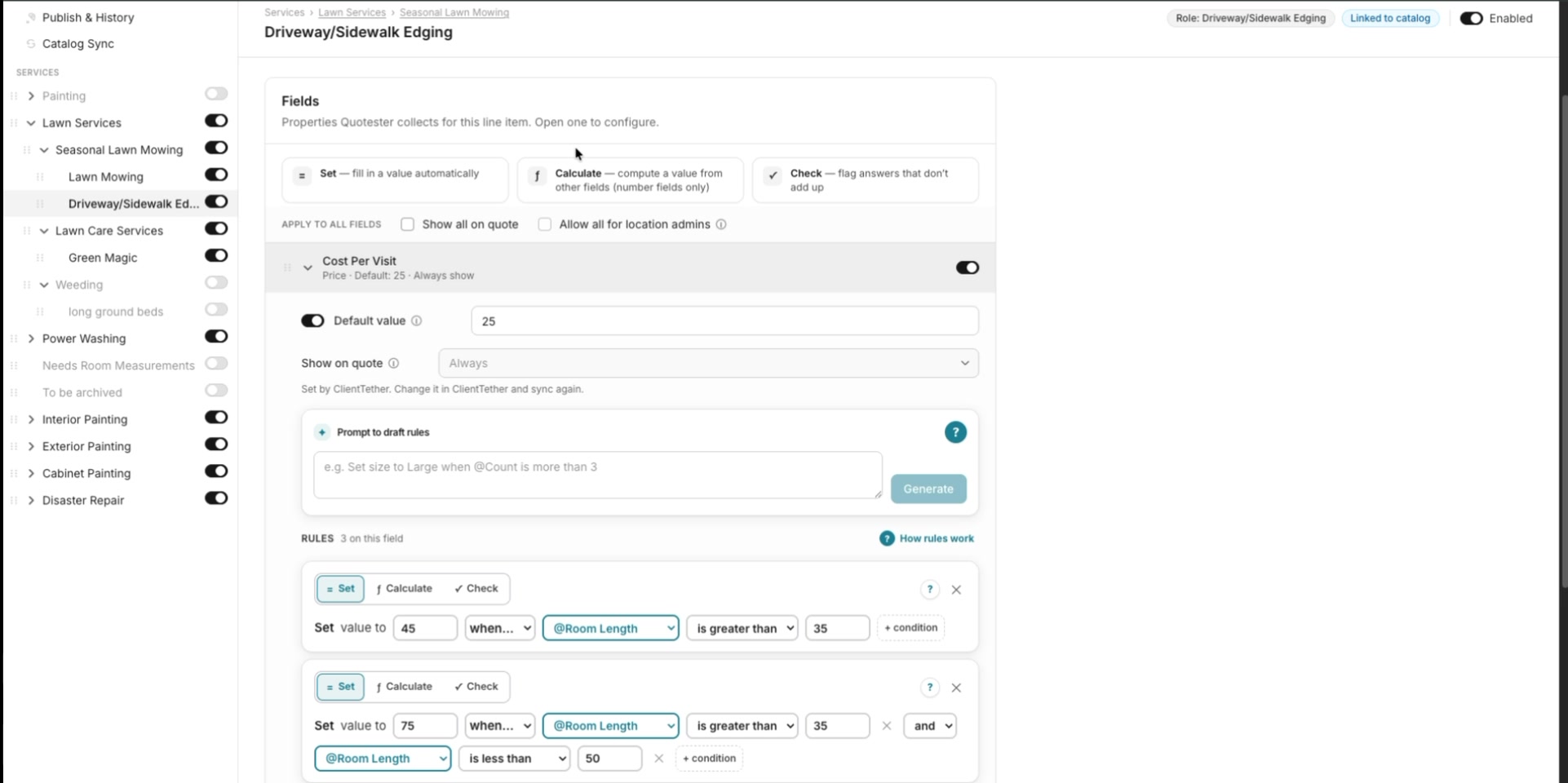
Check warns the estimator about an answer without changing the calculation.
Keep rules as simple as the workflow allows. Add complexity only when it is necessary.
Testing and Reviewing Proposals
Confirm ClientTether Proposal Behavior
ClientTether’s API currently lets QuoteSter update a customer’s primary proposal, but does not support creating multiple separate proposals for the same customer or retrieving existing proposal templates. Confirm which proposal should be updated before beginning. QuoteSter builds proposals from the configured pricing structure rather than importing a ClientTether template.
Best experience
Configure QuoteSter on a laptop or desktop for the best experience. Configuration is usable on mobile, but the workflow is not designed for mobile screens.
Test Rule Logic and the Proposal
If automatic rule building struggles with complex logic, enter the rule manually.
Open a New Proposal to test the quote and review what the customer will see.
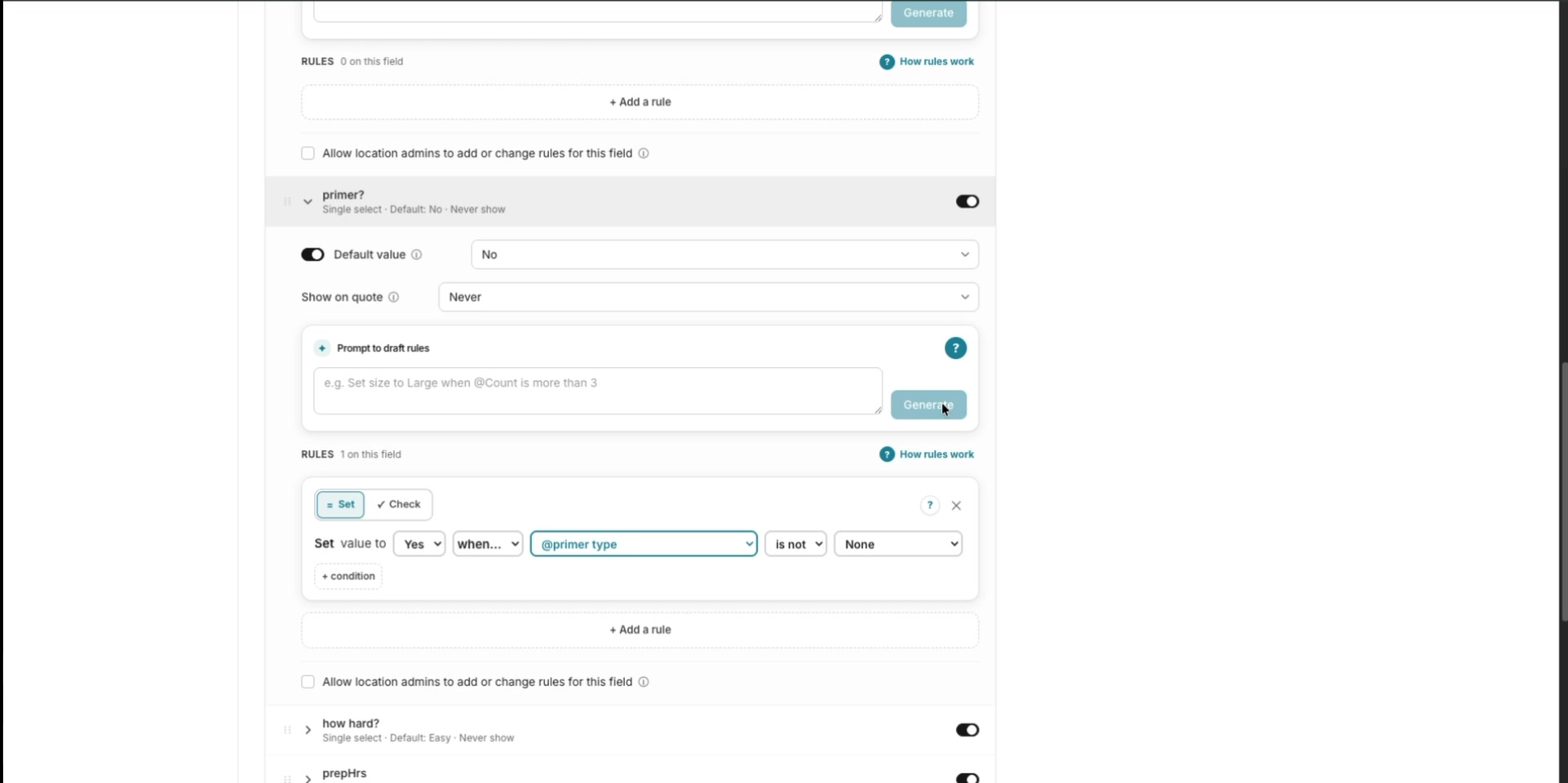
Check Required Selections
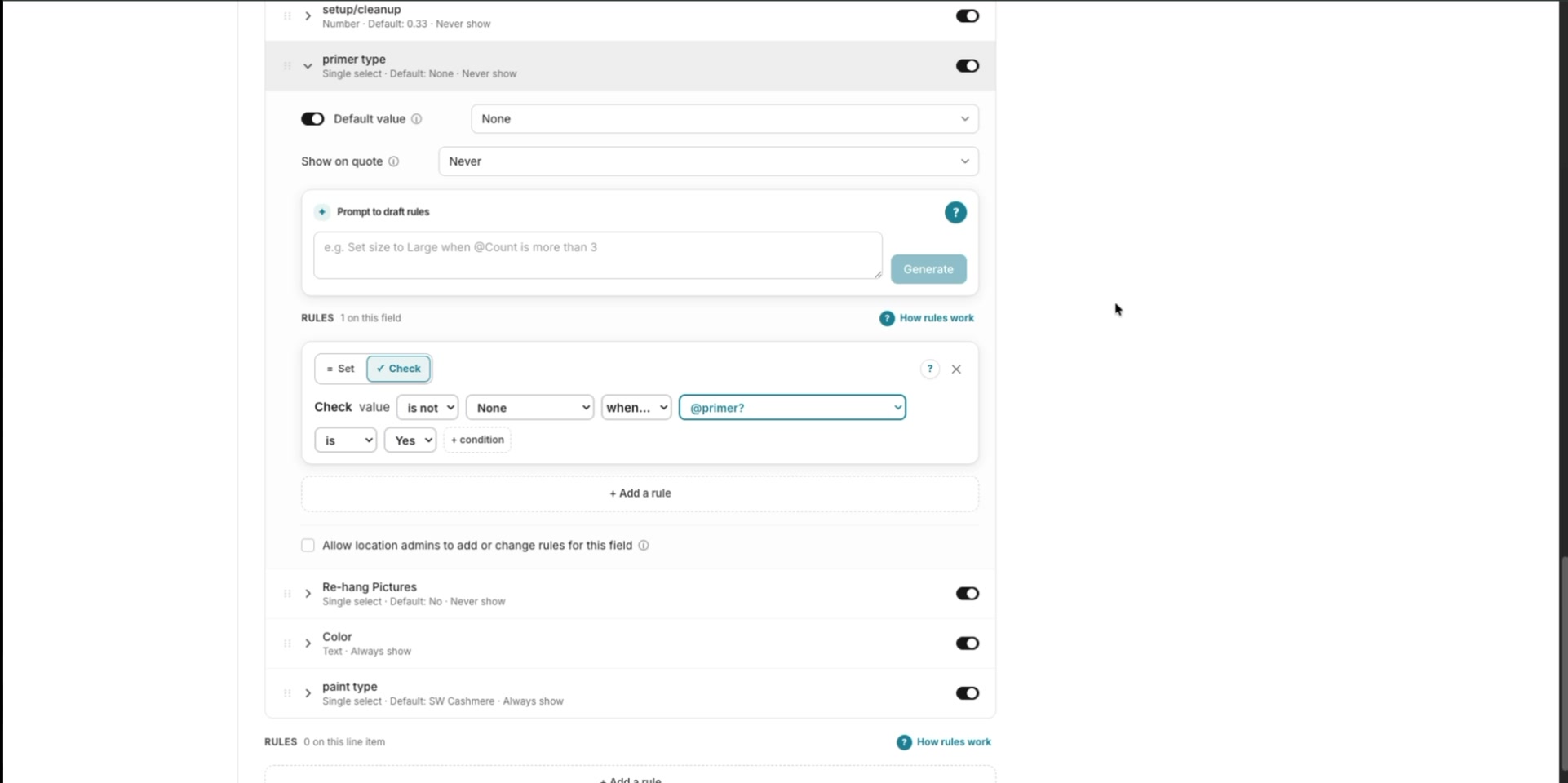
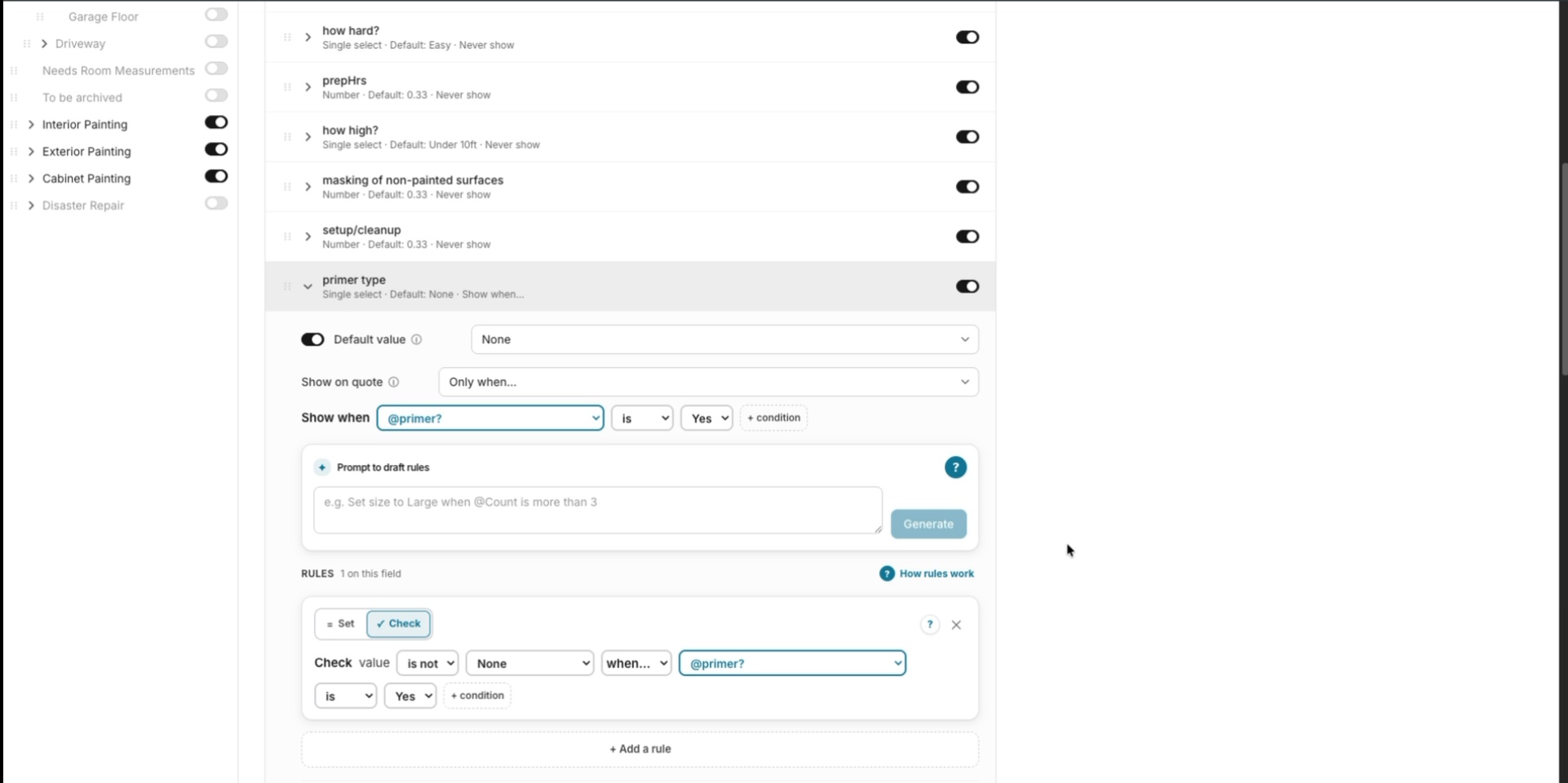
For required fields with multiple valid answers, such as primer selection, require the estimator to choose an option instead of using a Set rule to choose for them.
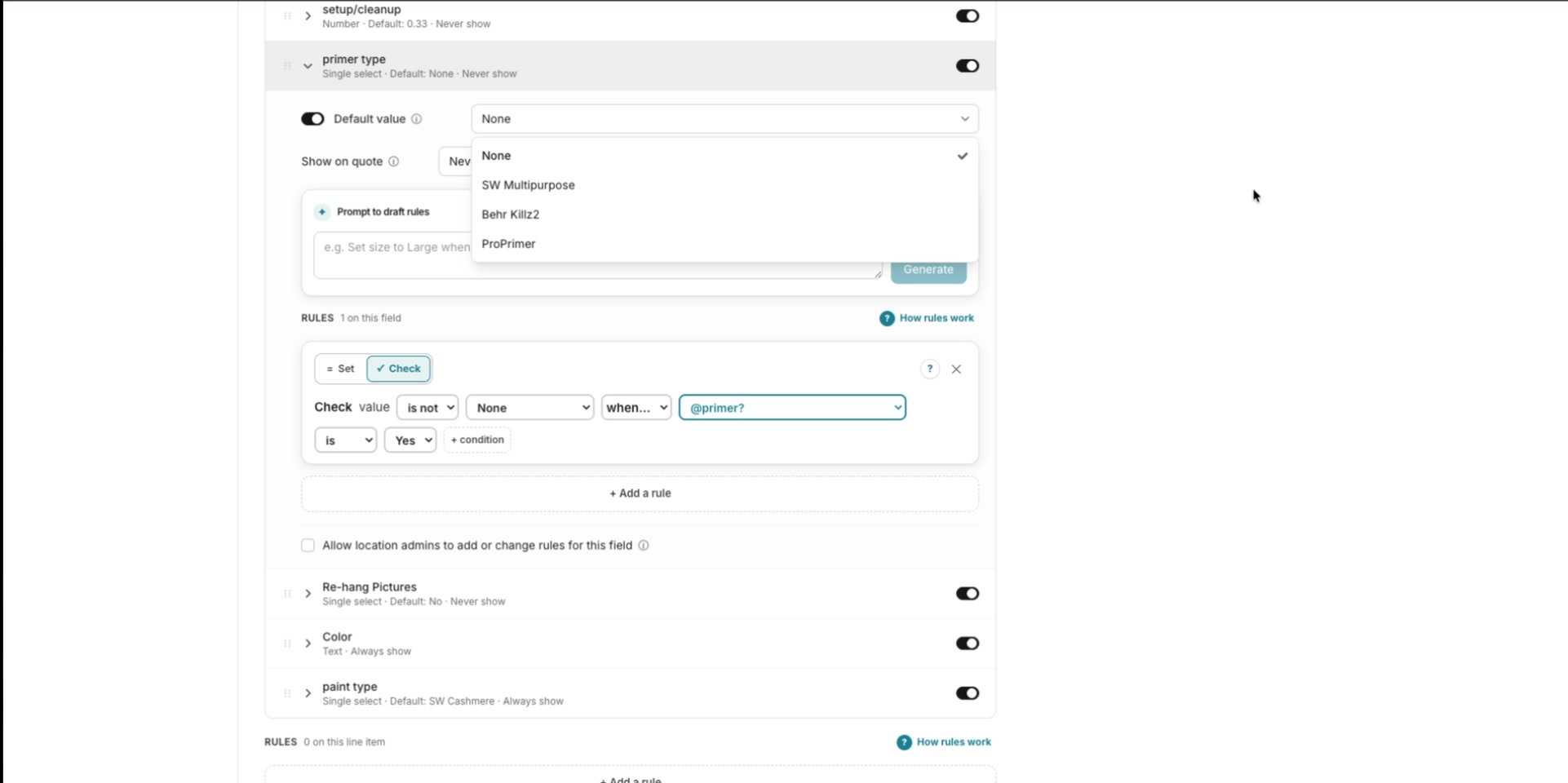
Test warnings with a Check rule that rejects None, then confirm the warning appears when no valid option is selected.
Building Advanced Rules
Build Pricing Tiers
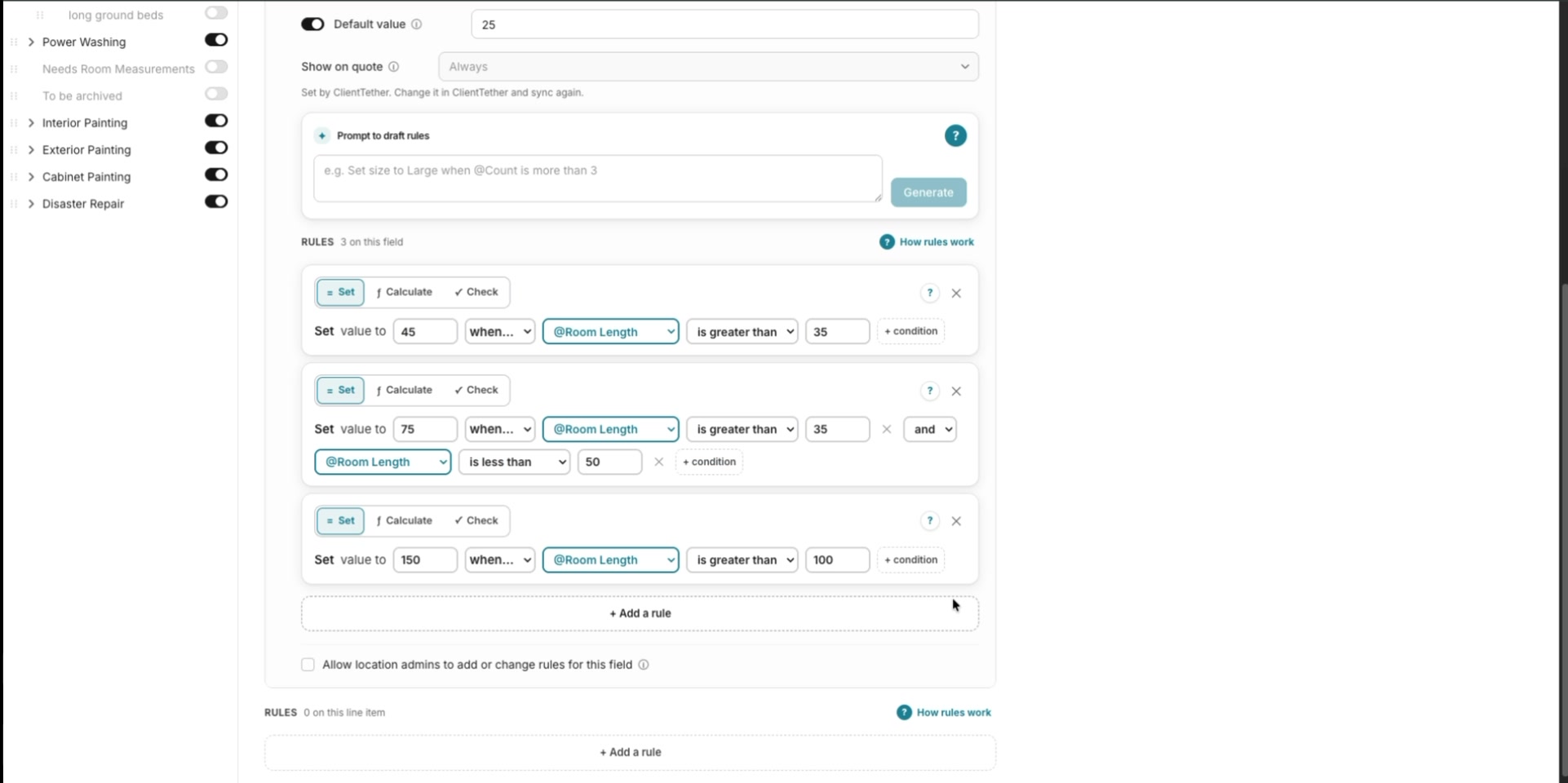
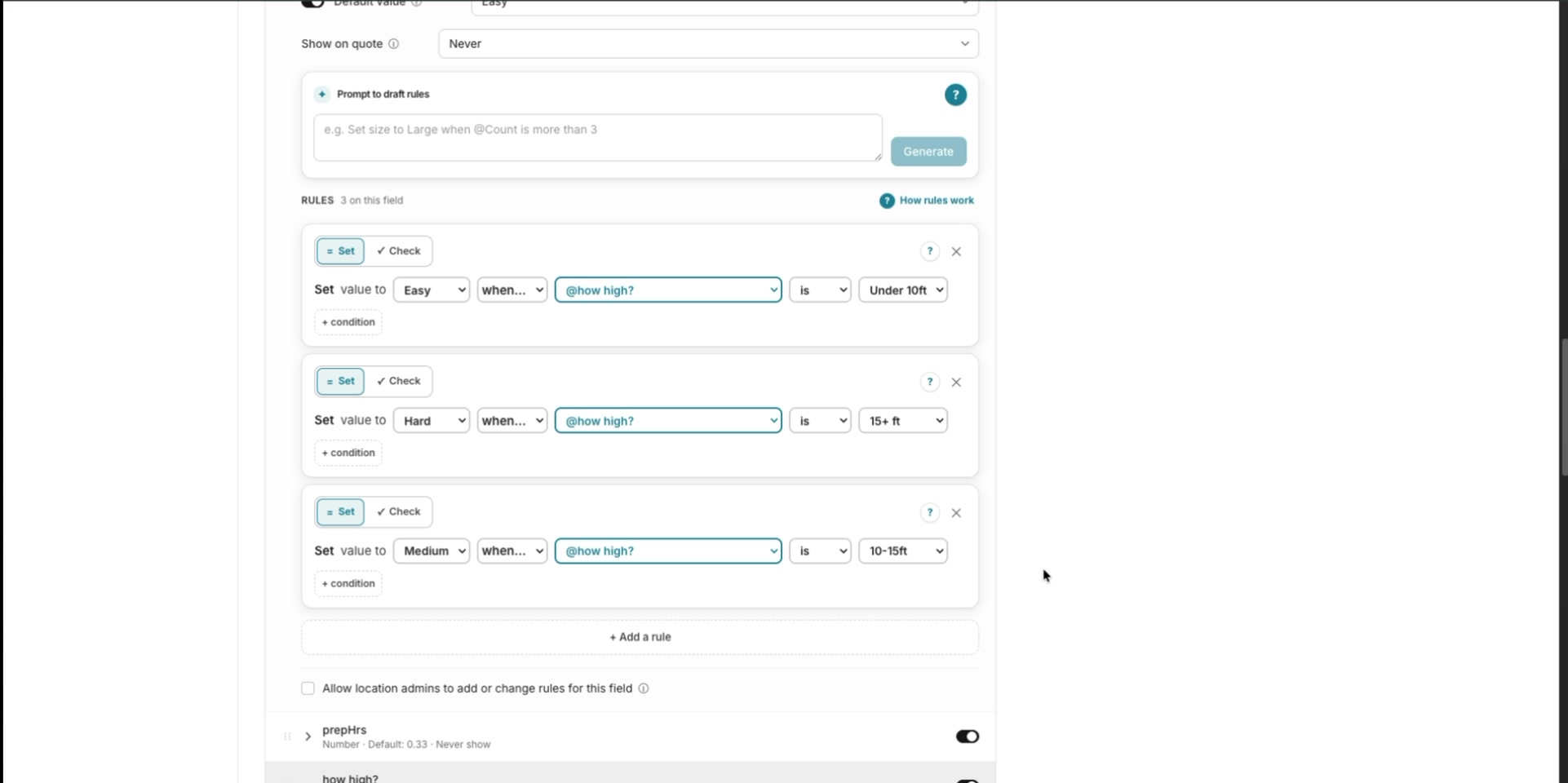
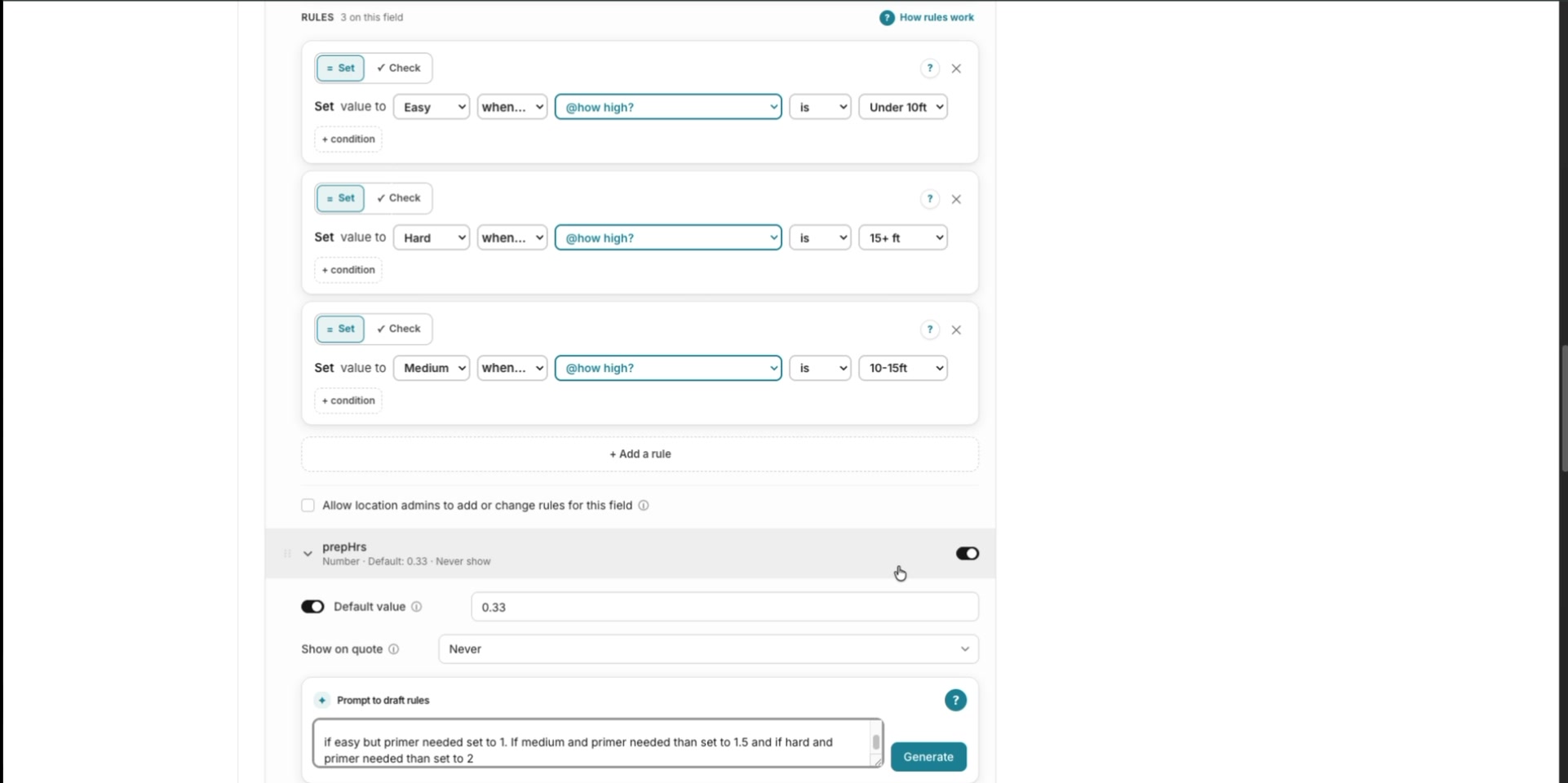
Stack rules to create pricing tiers. For example, three rules can increase the price as measurements cross different thresholds.
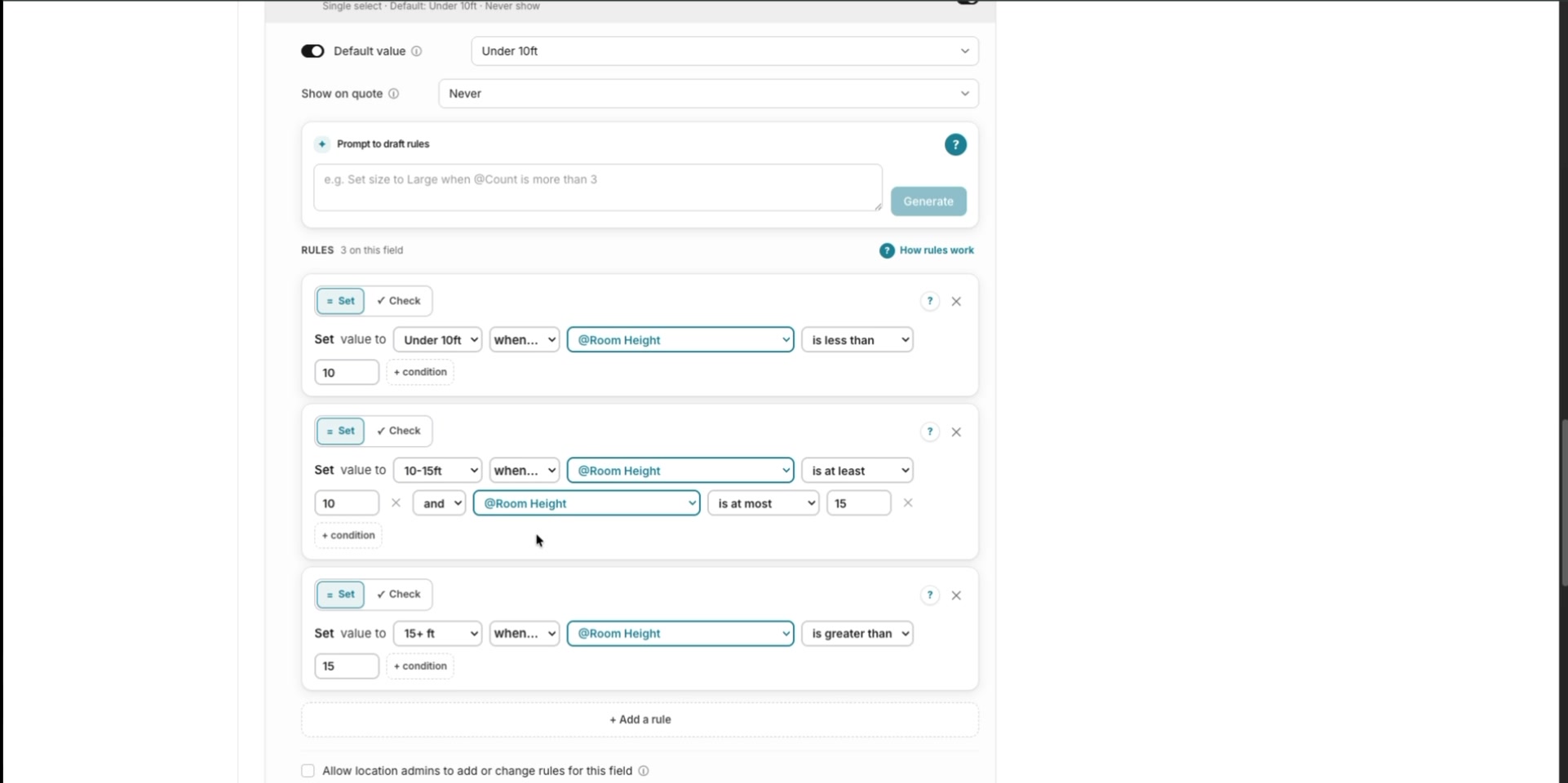
Enter rule logic directly in the text box to build rules without selecting every dropdown manually.
Review Linked Conditions
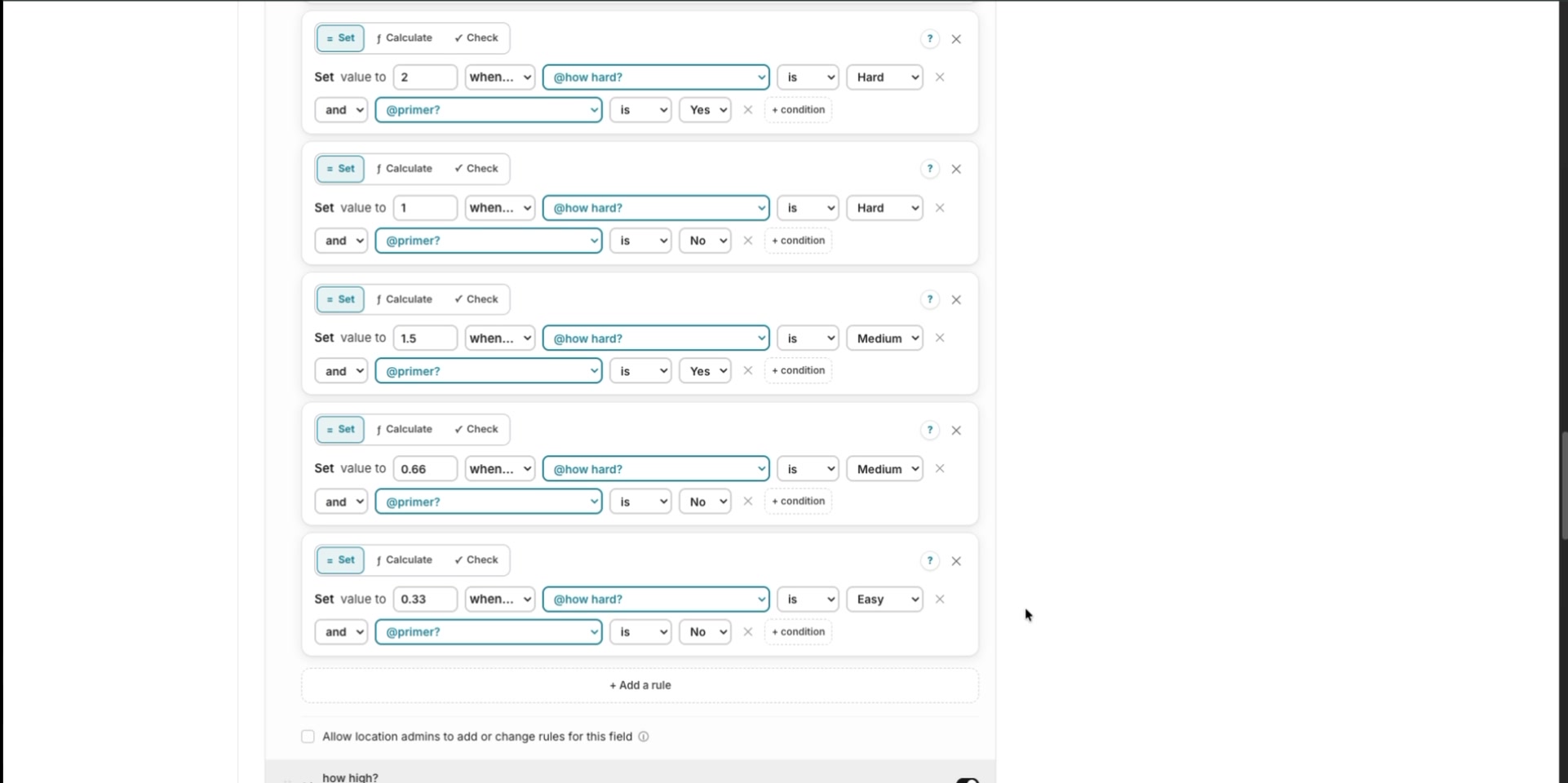
Link conditions as needed, checking that the rules do not conflict or cancel each other out.
Review the entire list of linked conditions, including those below the visible area.
Manage Background Calculations
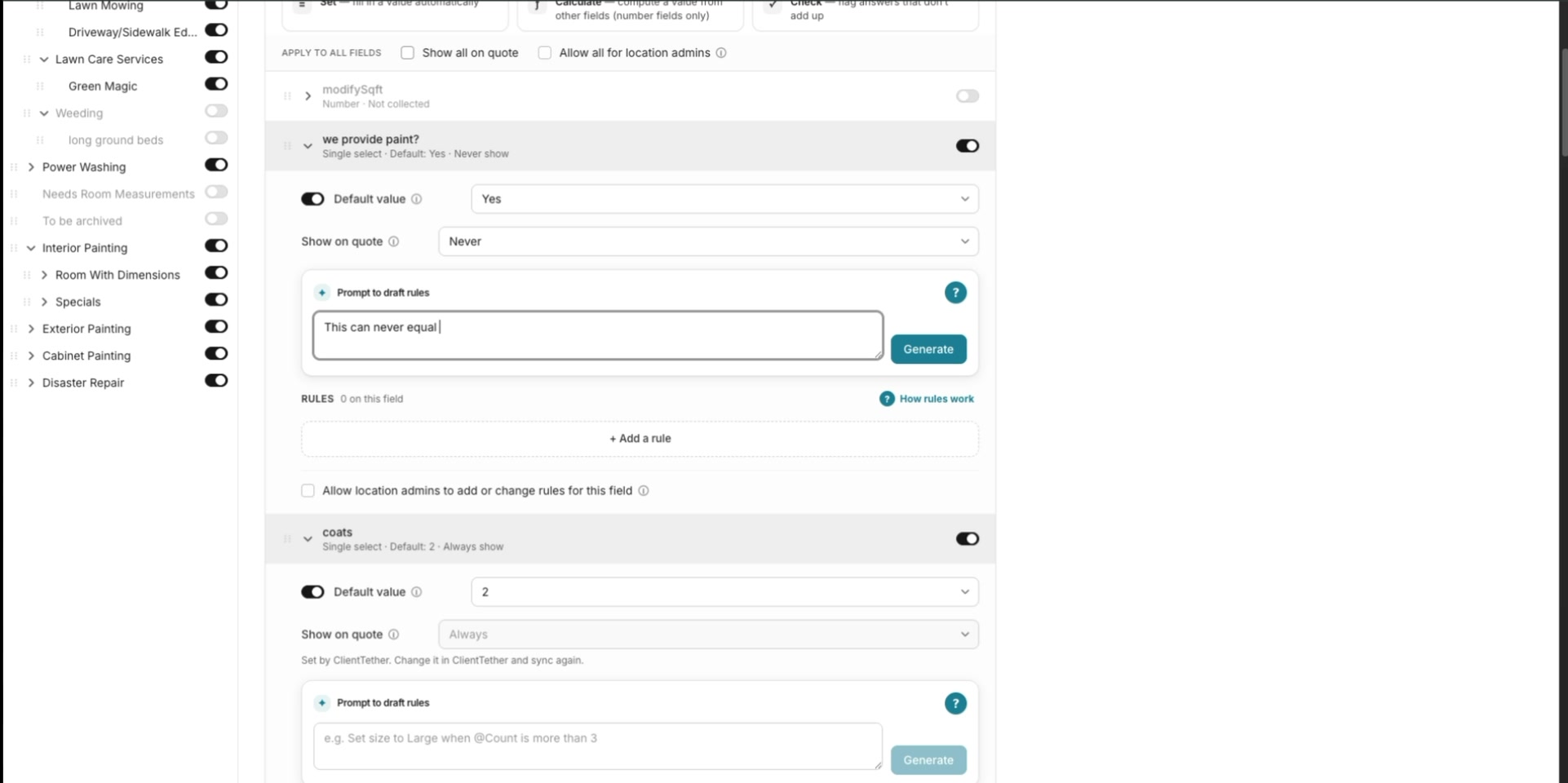
Use Never Show to hide background calculation fields from estimators while keeping their calculations active.
Use multi-step calculations to combine prep hours, masking, and base cost, then multiply by the final rate.
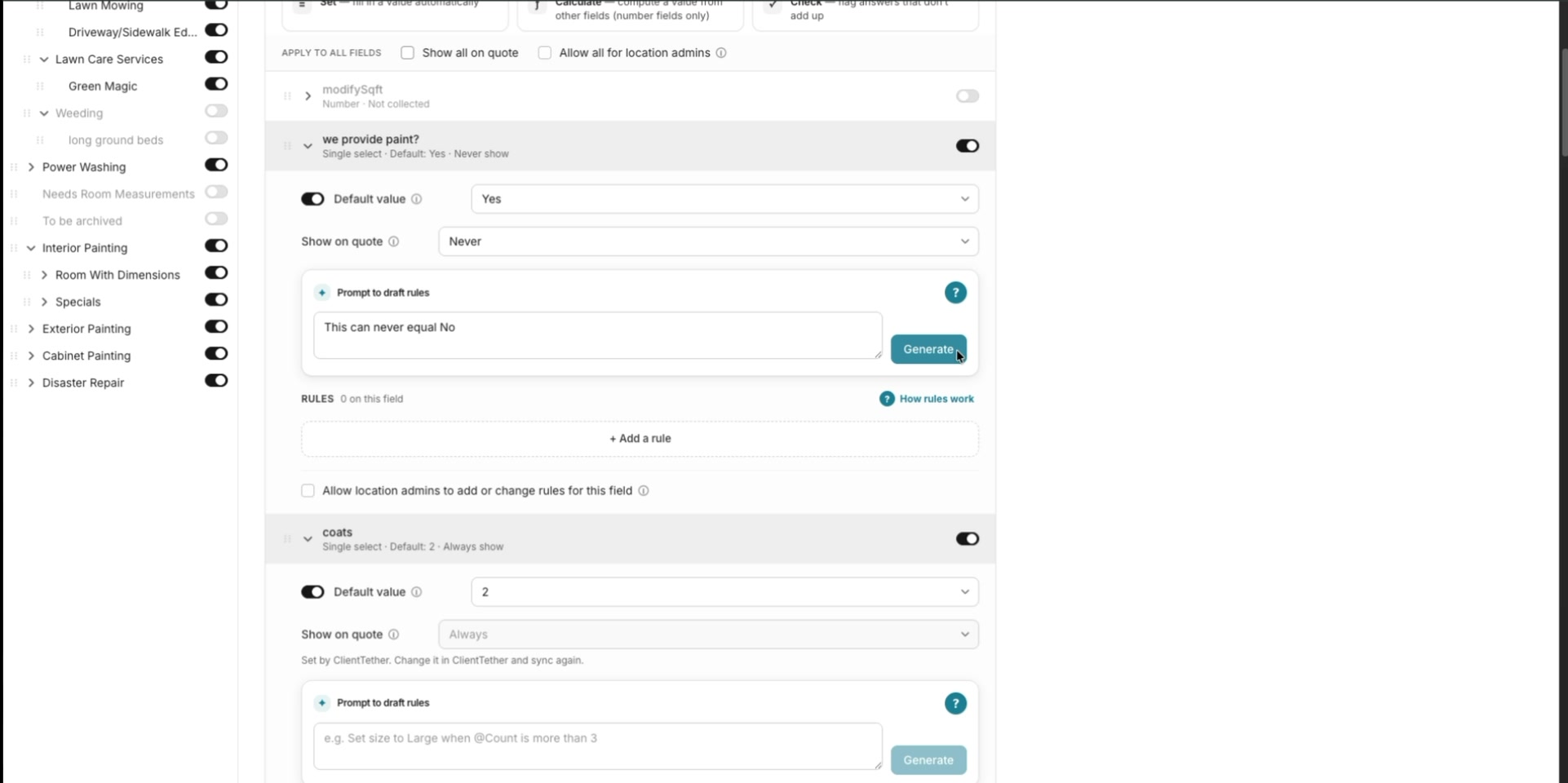
Ensure every field referenced by a calculation contains a value. Empty inputs can cause the calculation to fail.
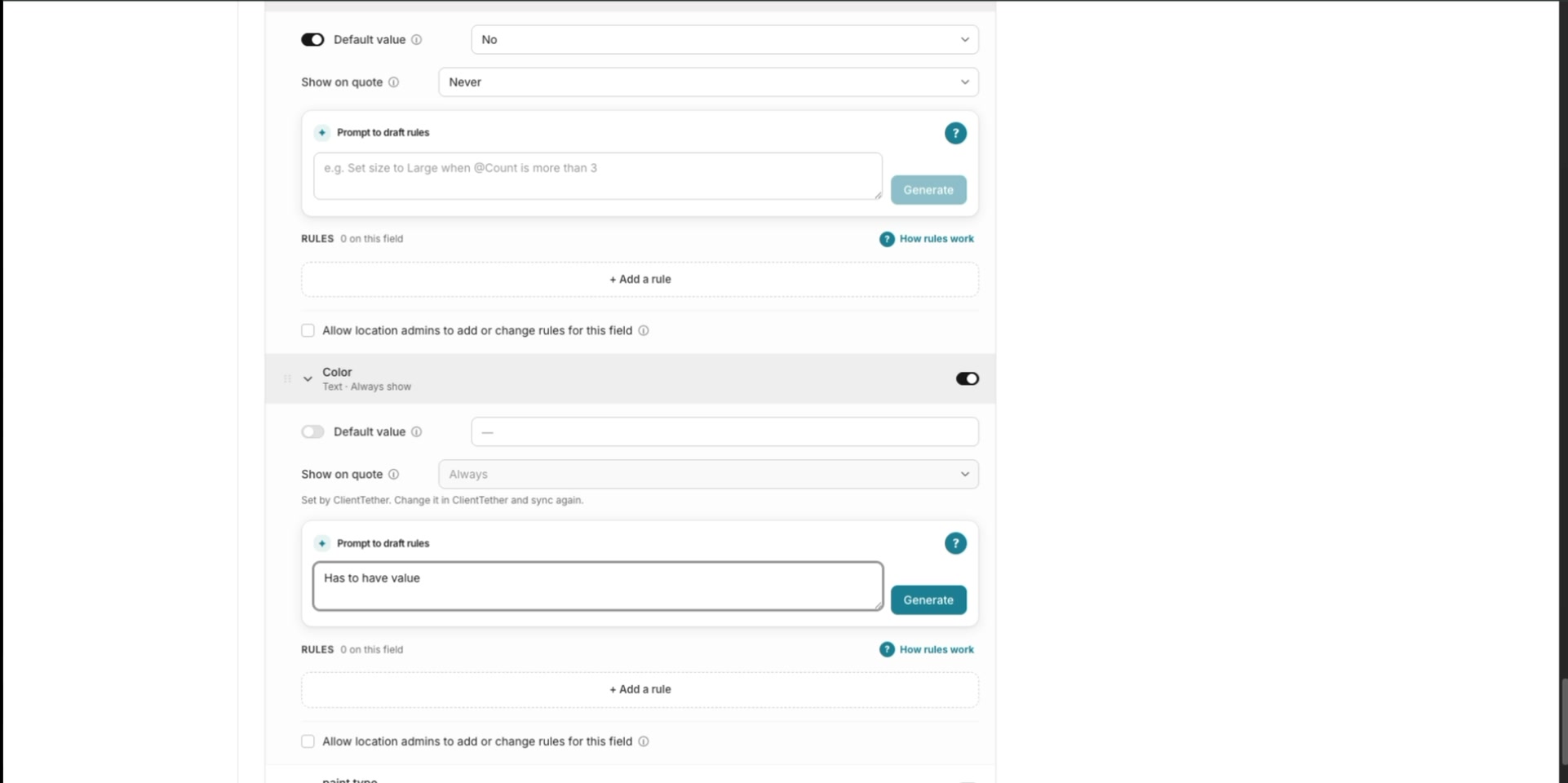
Controlling What Appears on the Quote
Use Show on quote to control visibility on the customer-facing quote.
| Option | Behavior |
|---|---|
| Always | Keep the item visible on the quote. |
| Never | Hide the item from the quote. |
| Only when | Show the item only when its configured condition is met. |
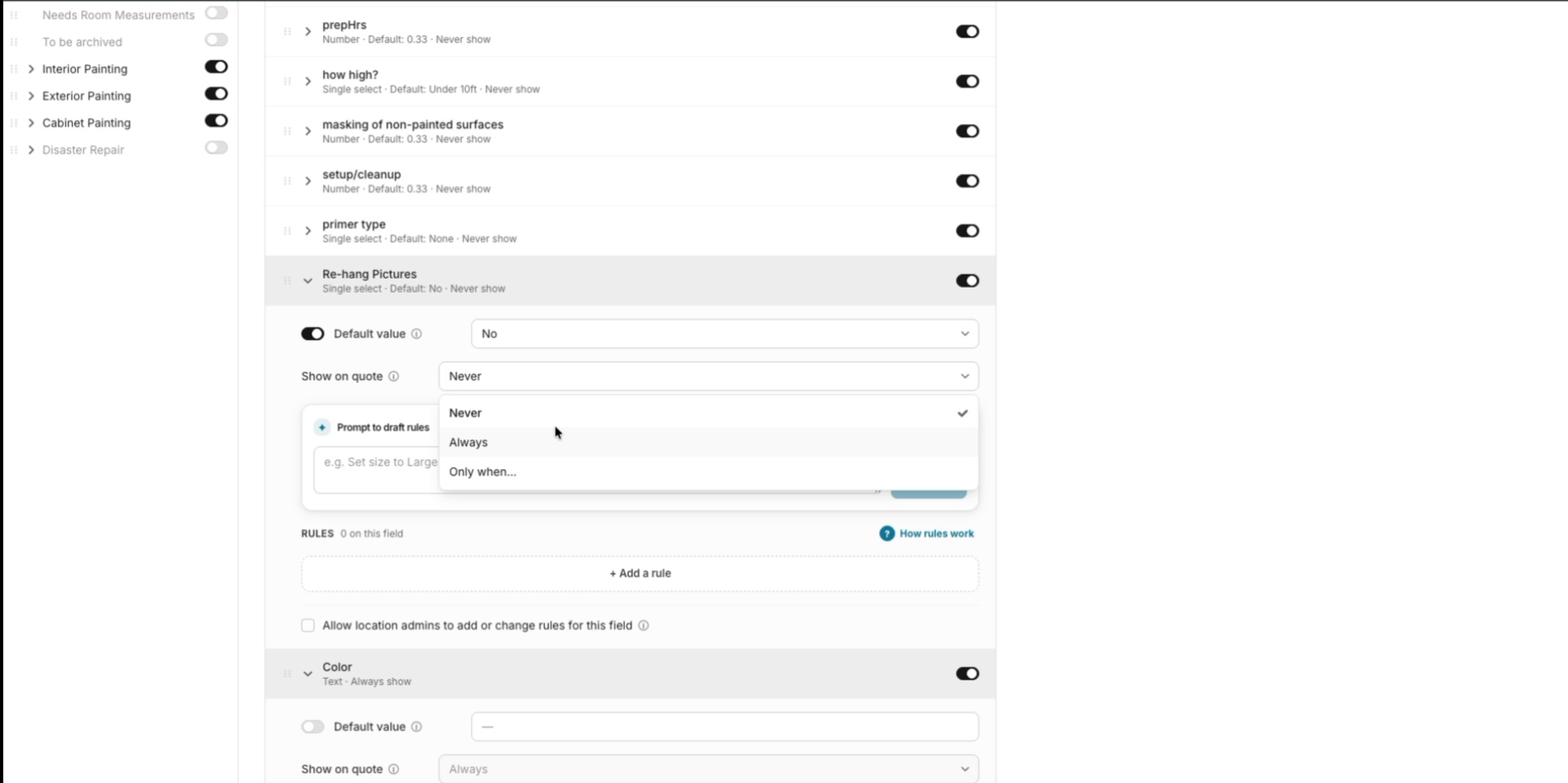
For conditional visibility, select Only when and create a matching rule. For example, show Primer Type only when the estimator selects Yes for needing primer.
Finalizing and Publishing
Review the Configuration
Fine-tune existing rules by adjusting default values or dropdown conditions, then retest the calculation.
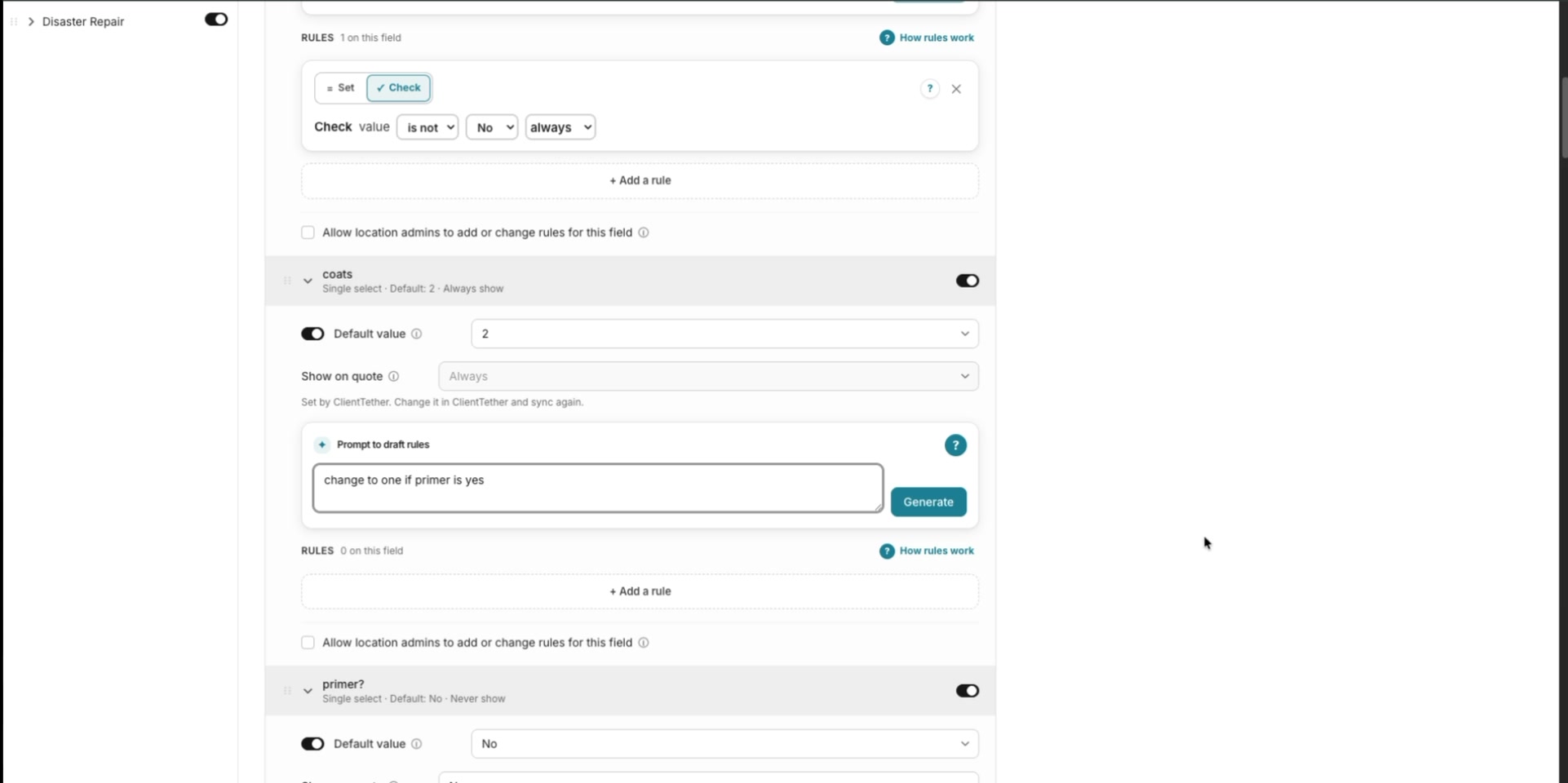
Review the generated text prompt. It should clearly explain the rule's logic to a new user.
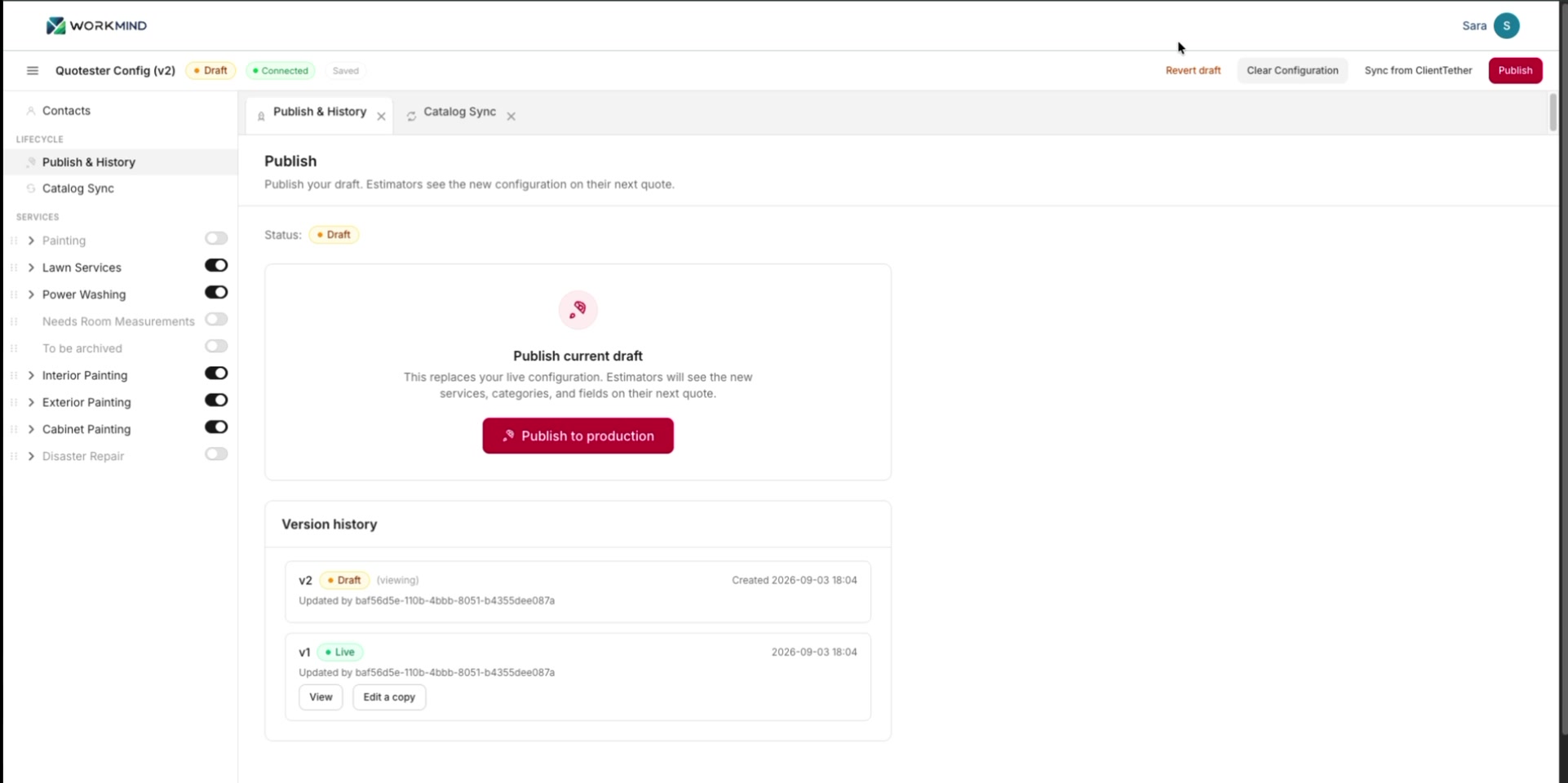
Publish and Review History
Click Publish to replace the previous configuration and make the new version available to estimators.
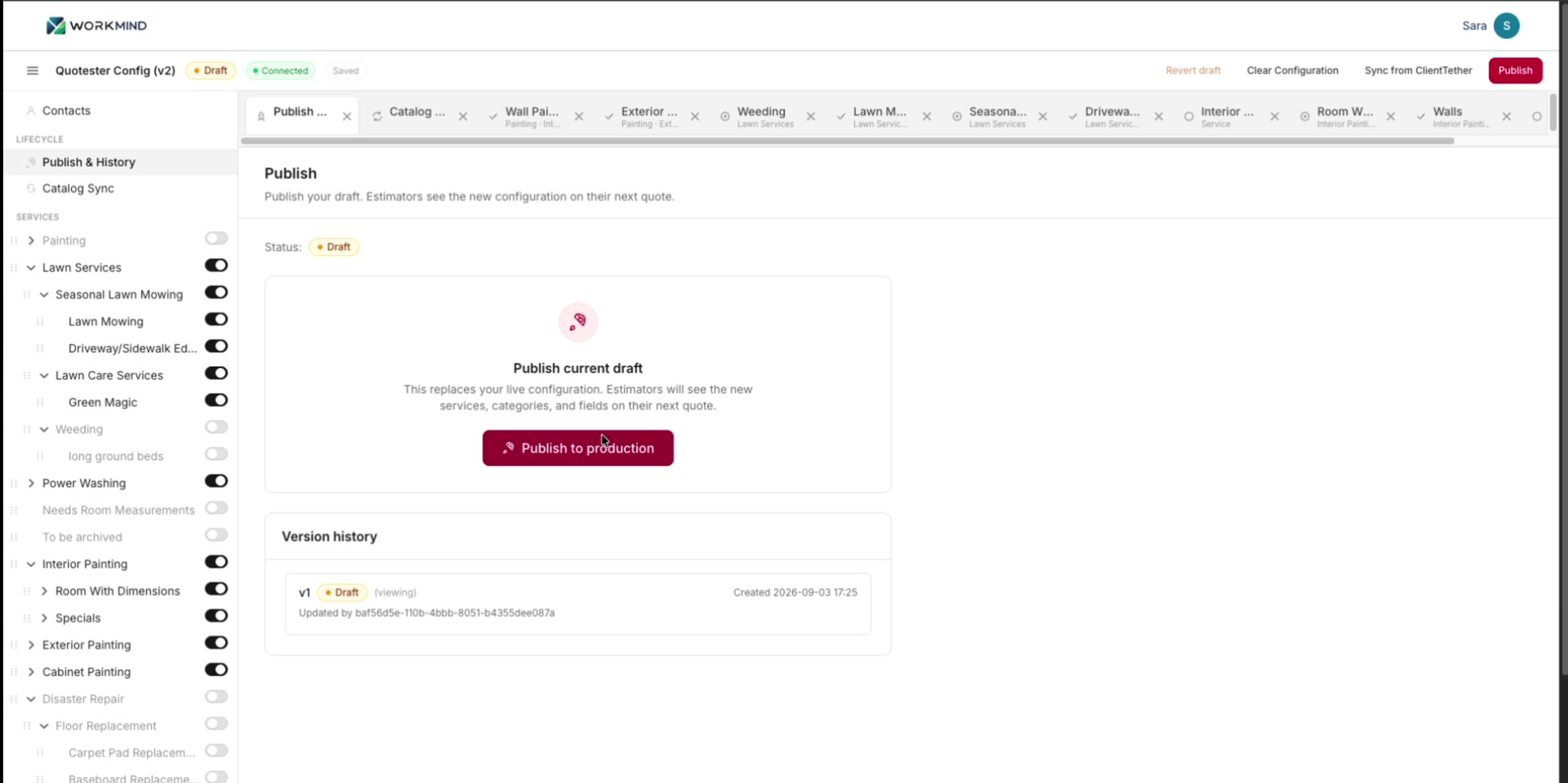
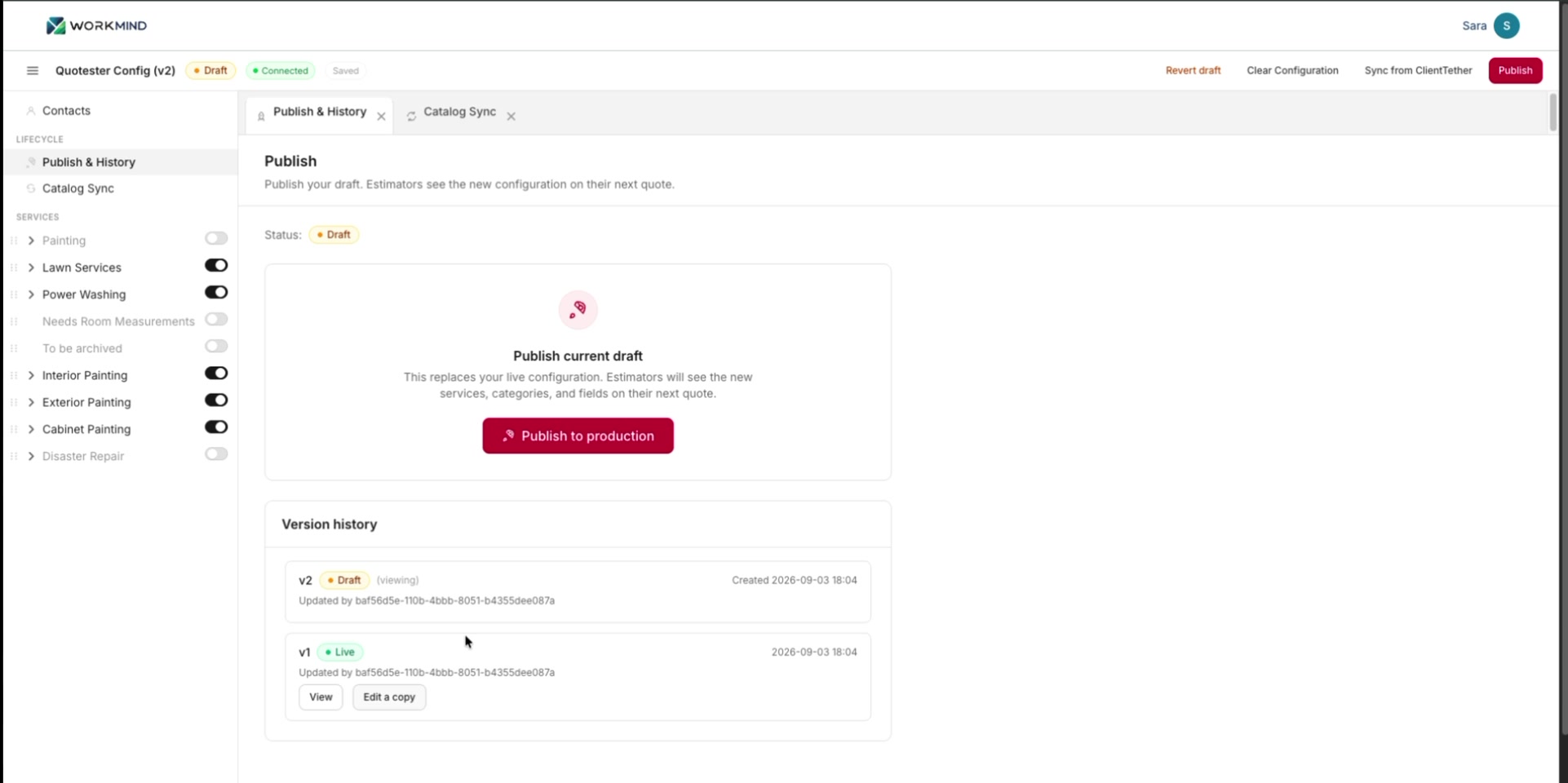
Use Version History to review who changed the configuration and when.
Clear the Configuration
Caution: Clear Configuration wipes the configuration so you can start over. Use it only when you intend to remove the current setup.