

Connect Paycor to WorkMind
Connect Paycor to WorkMind using the correct environment and authorize the companies you want to link.
This guide covers adding UMA to your WorkMind account, choosing the correct Paycor environment, and connecting Paycor companies.
Add UMA to Your WorkMind Account
In WorkMind, open Billing, choose Purchase, and enter your trial code to add UMA to the account.
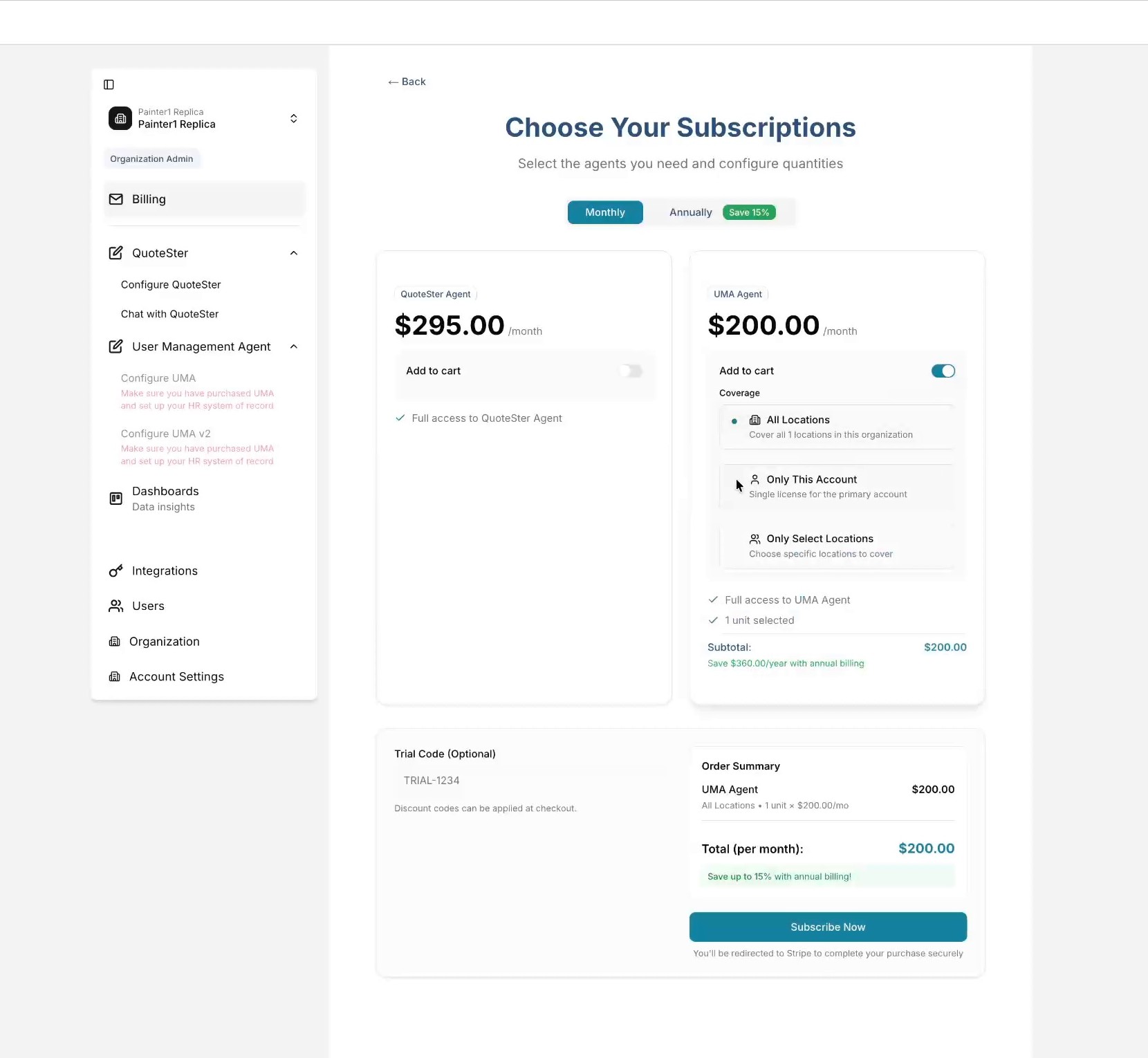
Choose the Matching Paycor Environment
Paycor test accounts must connect to the test environment; live accounts must connect to production. The sign-in pages differ, so confirm which kind of account you are using before you connect.

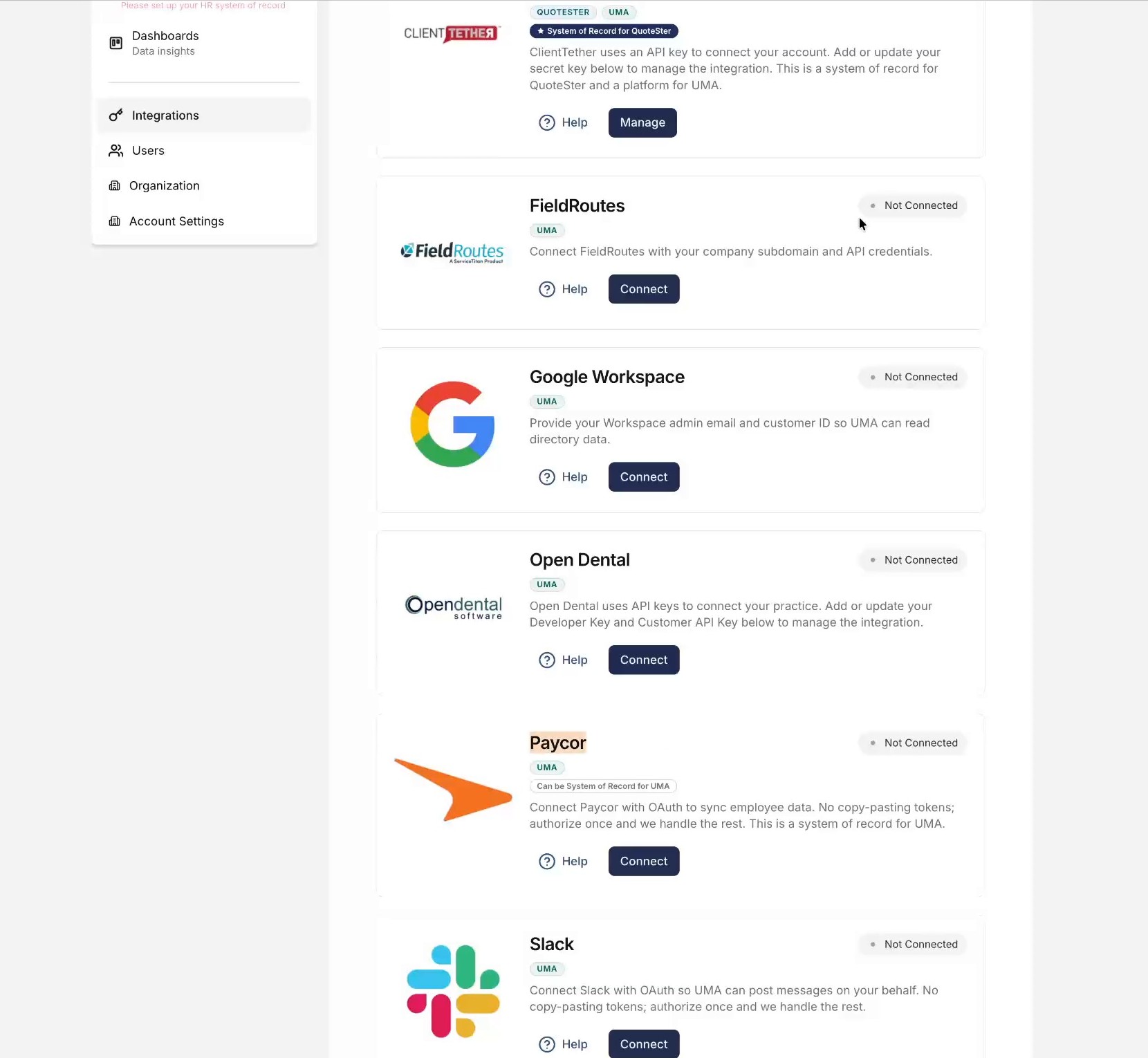
Connect Paycor and Approve Access
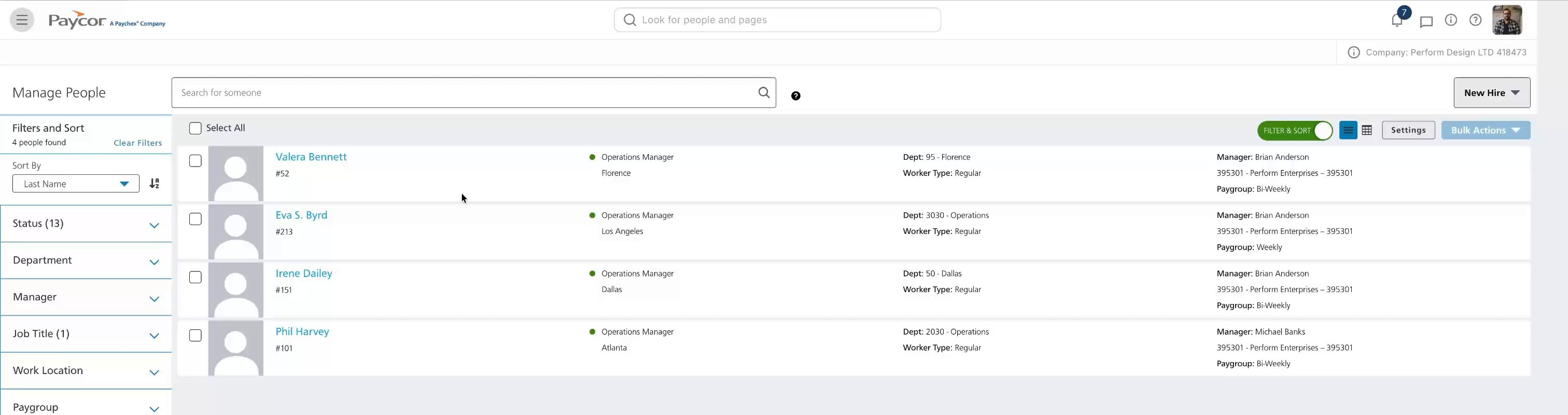
Before connecting, sign in to the Paycor demo portal and confirm that the employee data is correct.
In WorkMind, open Integrations and click Connect next to Paycor.
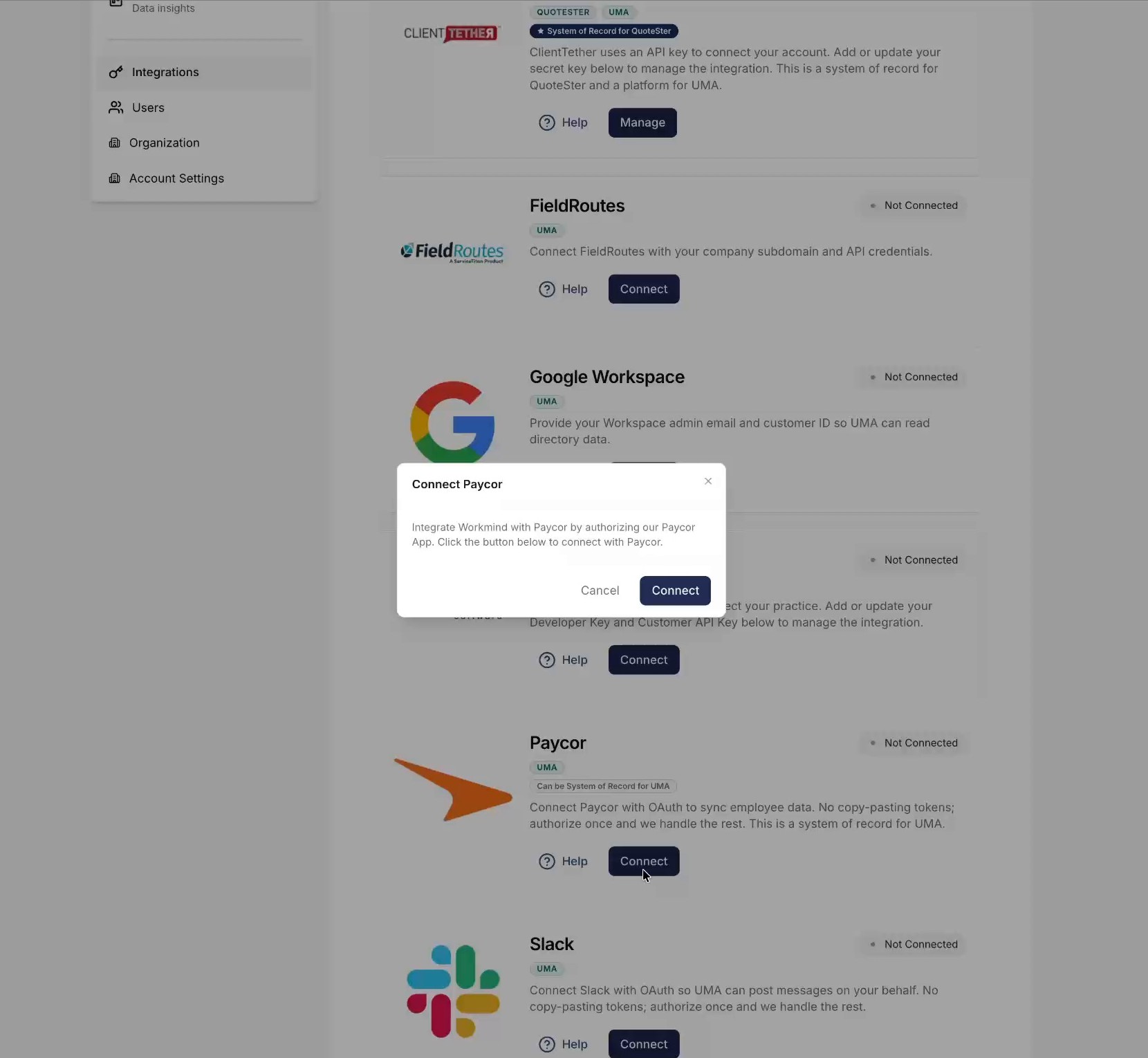
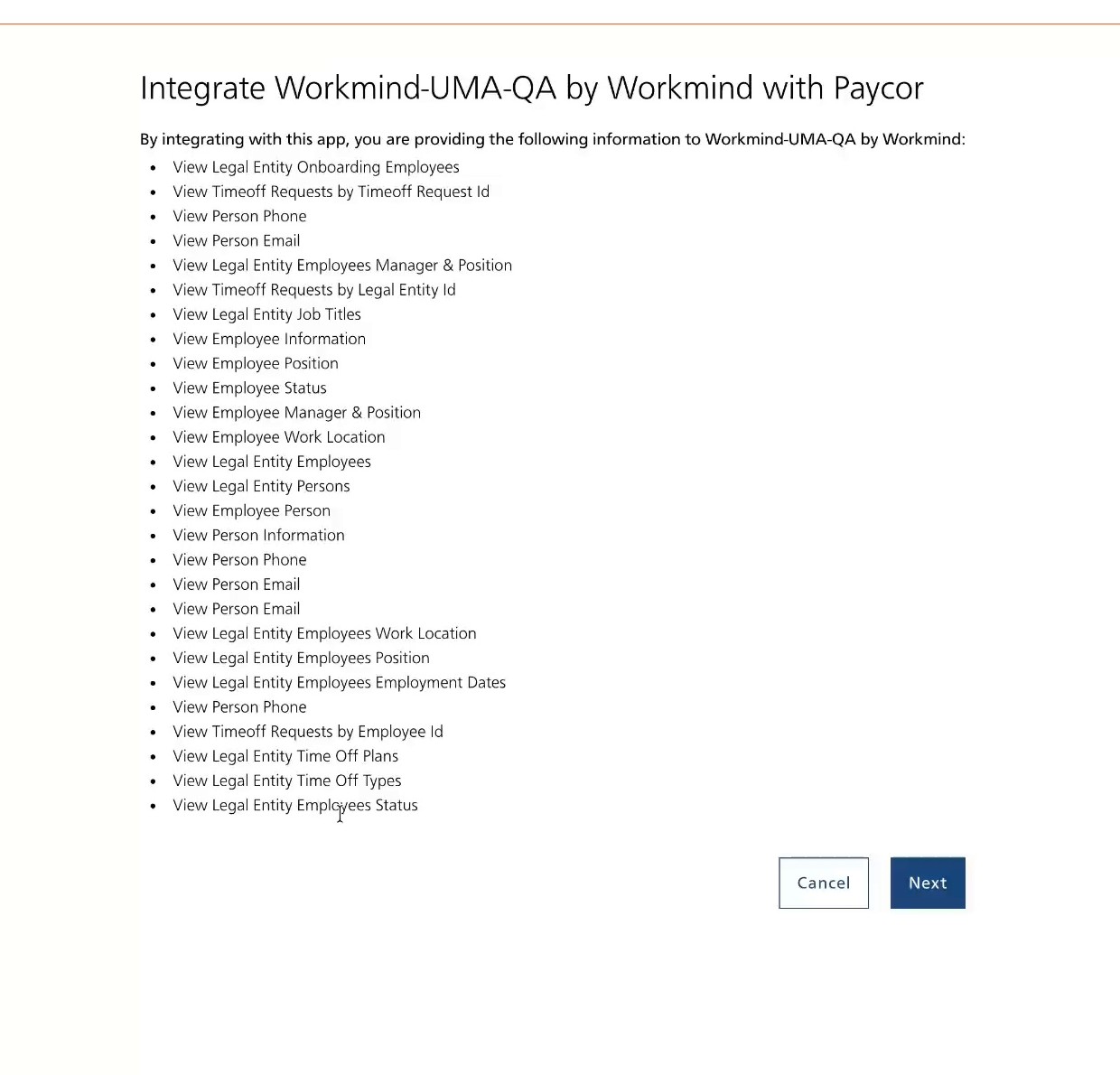
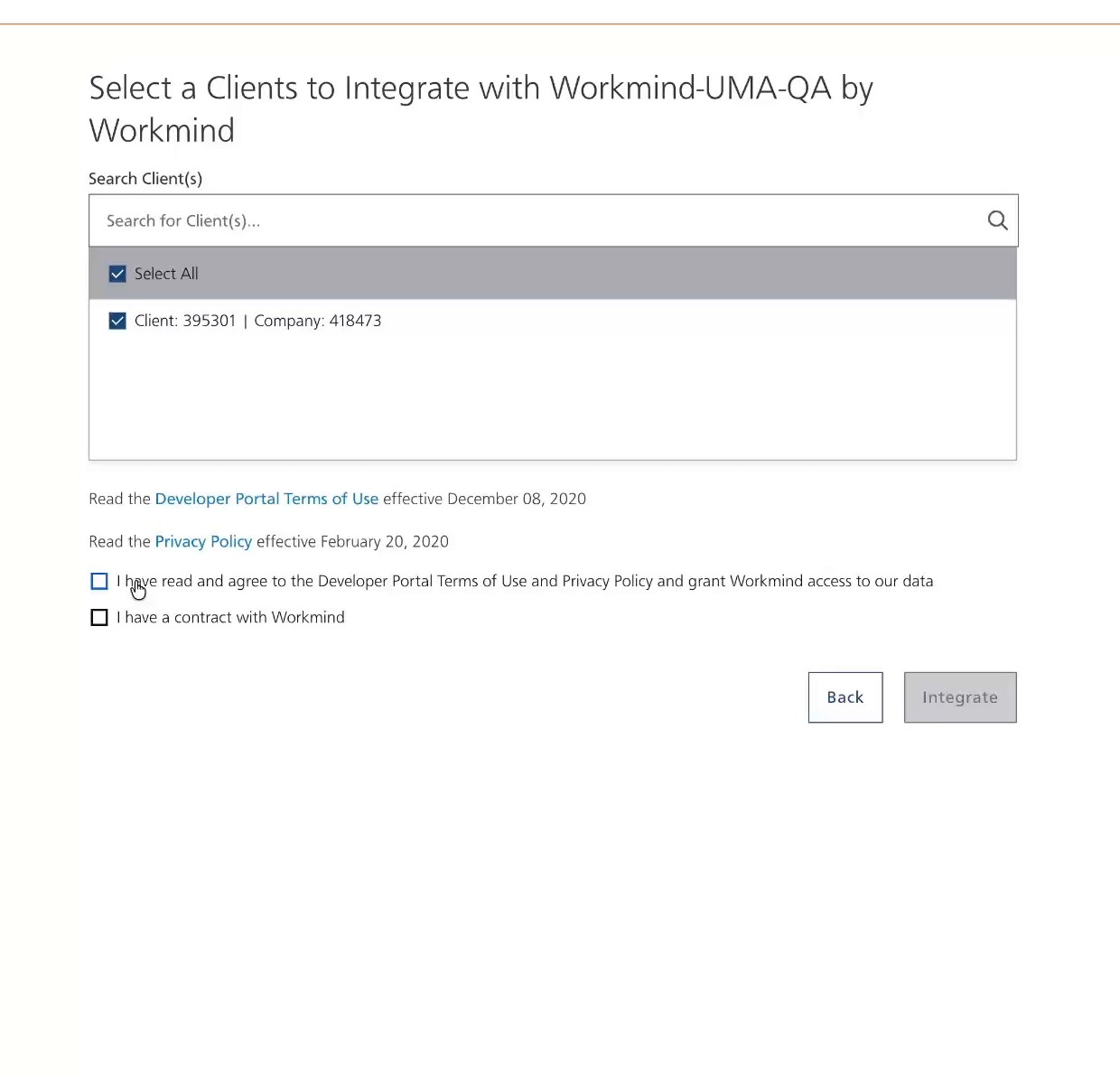
Review the requested permissions. Select each Paycor company you are authorized to connect, then click Agree.
Next Step
After Paycor is connected, follow Using UMA to import employee data, configure access by role, and publish your UMA settings.