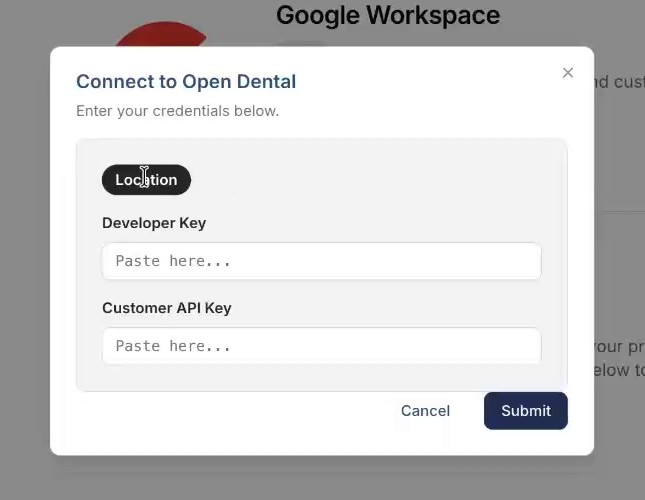

Connect Open Dental to WorkMind
Enable Open Dental API access, add the practice key, and finish the connection in WorkMind.
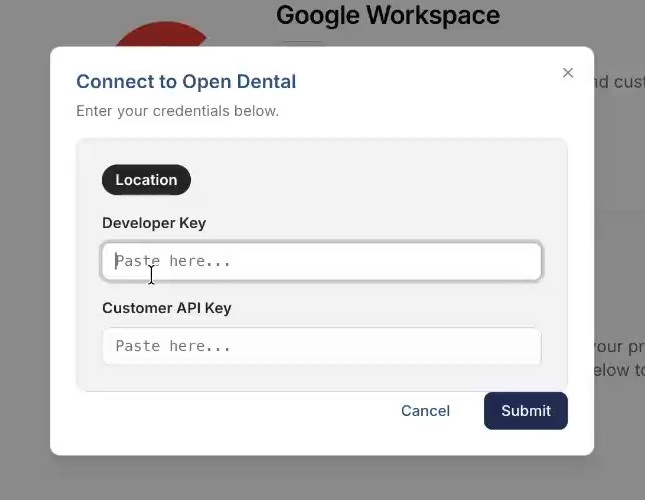
The connection uses two credentials. The Developer Key is provided by WorkMind and entered in the Developer Key field in WorkMind. A WorkMind integration administrator creates a practice-specific Customer API Key in the Open Dental Developer Portal and shares it securely with the practice. Add that Customer API Key in Open Dental, then enter it in WorkMind as well. If you are the practice administrator and do not have the keys, request them from your WorkMind contact. Treat both keys as passwords.
Get the Keys
In WorkMind, open Integrations and click Connect next to Open Dental. Note the Location, Developer Key, and Customer API Key fields. You will fill them in after Open Dental is configured.
A WorkMind integration administrator creates a key for the practice in the Open Dental Developer Portal. Open Customer API Keys and choose Create Key.
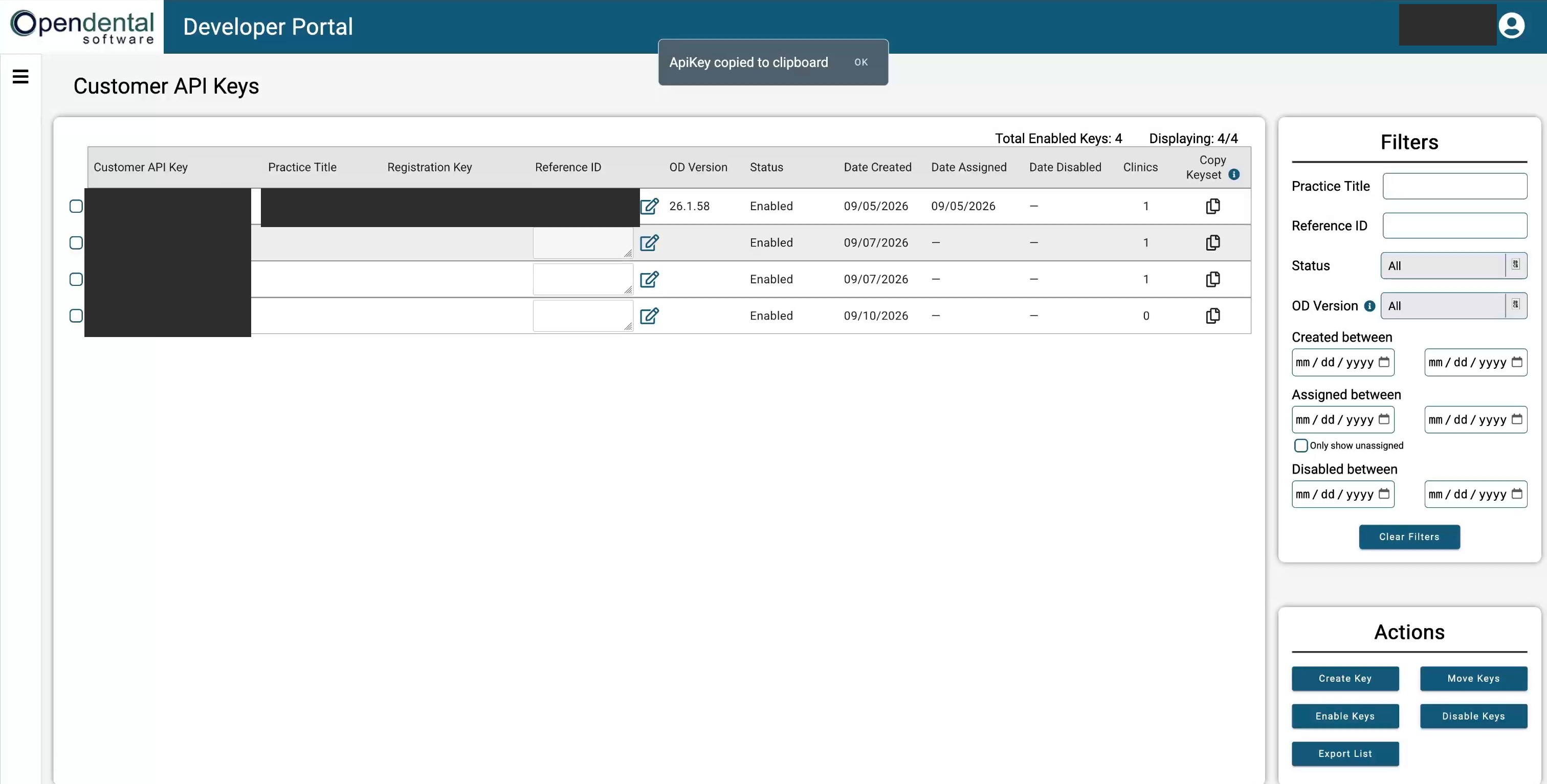
Use the portal's copy control and send the new Customer API Key securely to the practice administrator. Do not send it in an unsecured message or include it in documentation or screenshots.
Configure Open Dental
On the practice workstation or server, open the Open Dental desktop application.

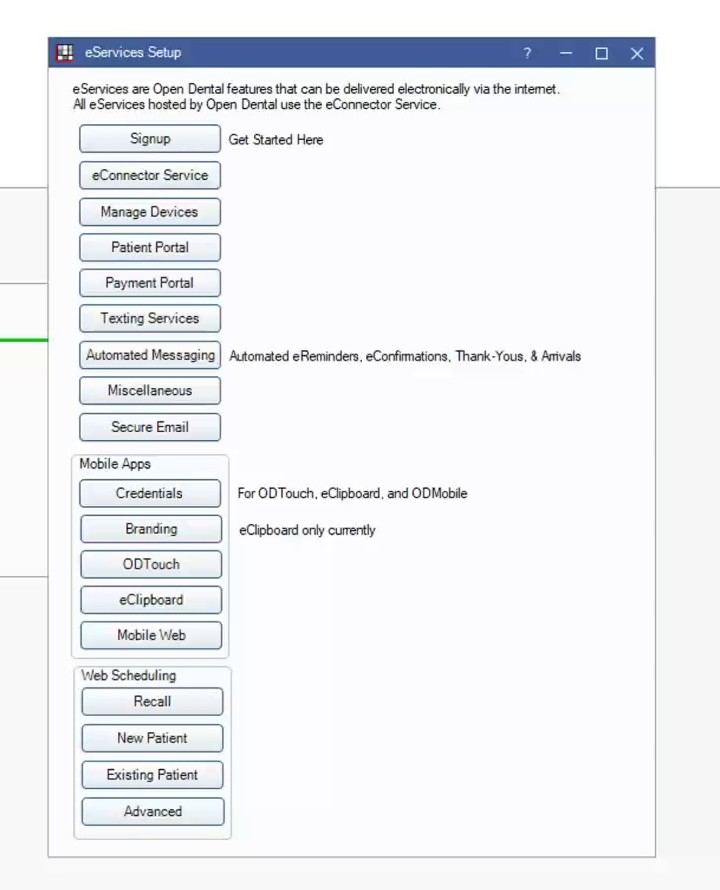
Open eServices. If the eServices bundle and prices are displayed, do not purchase the bundle for this integration; WorkMind's developer key is used for the connection.
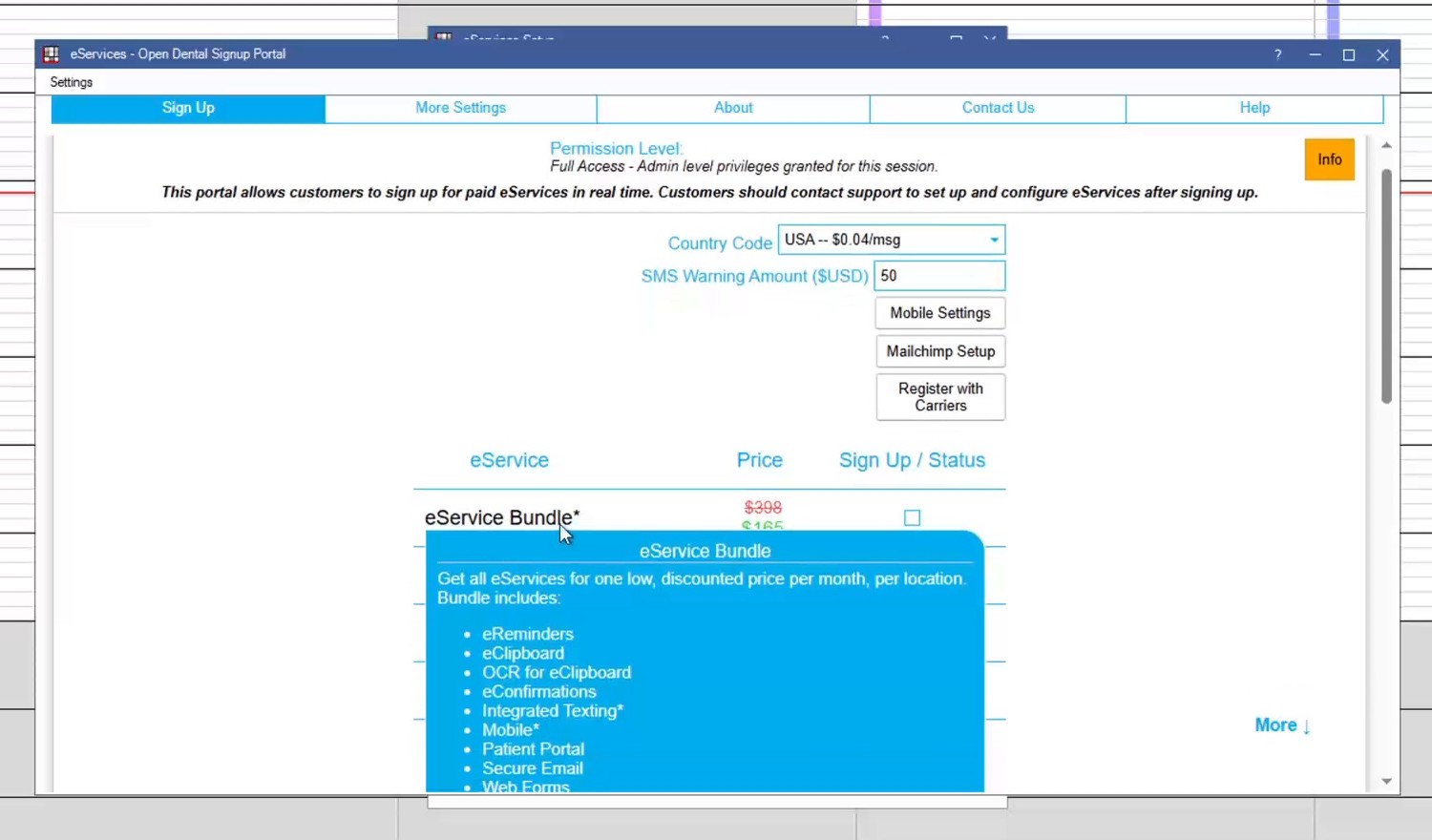
In eServices, choose eConnector Service and turn the service on if it is not already running.
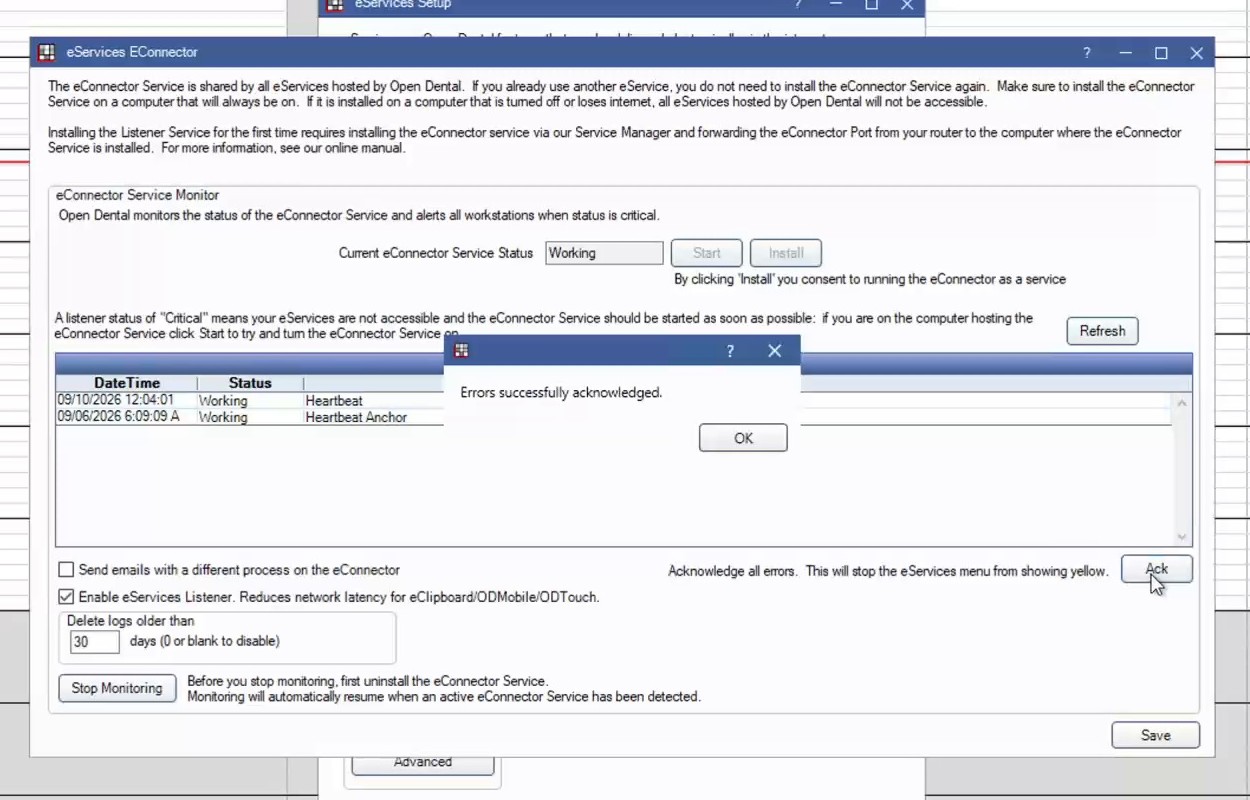
Confirm the eConnector heartbeat status is Working. Click Ack to acknowledge the current status.
From the Open Dental menu, choose Setup, then Advanced Setup, then API.

In the API Setup window, make sure Enabled is checked.
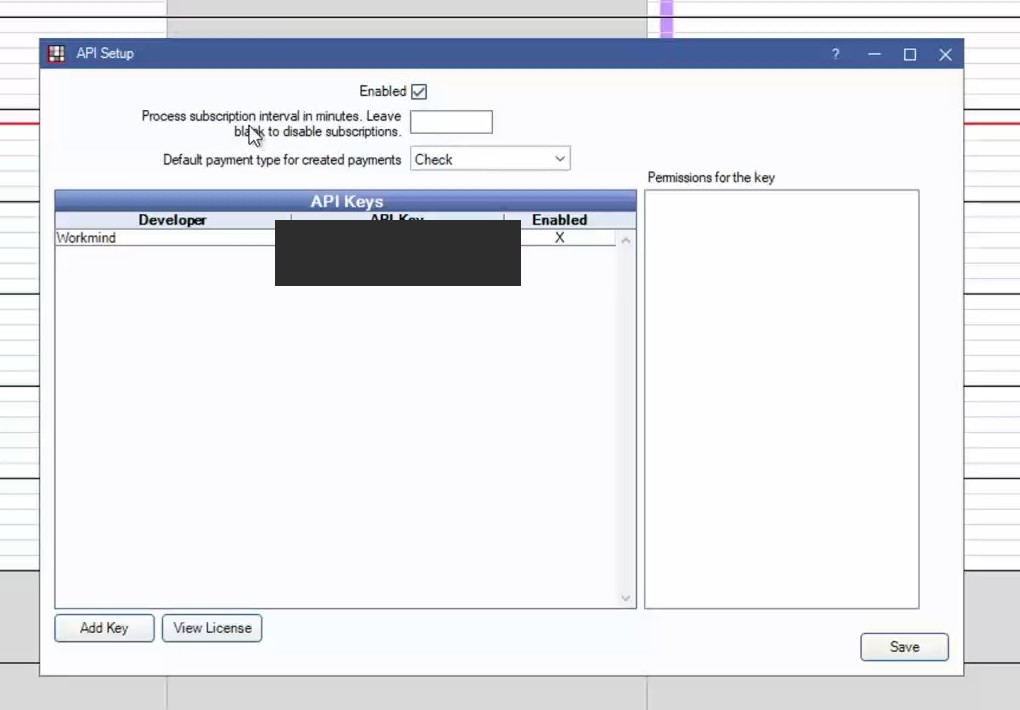
Leave Process subscription interval blank and skip the payment settings. You do not need to set up a subscription for this integration.
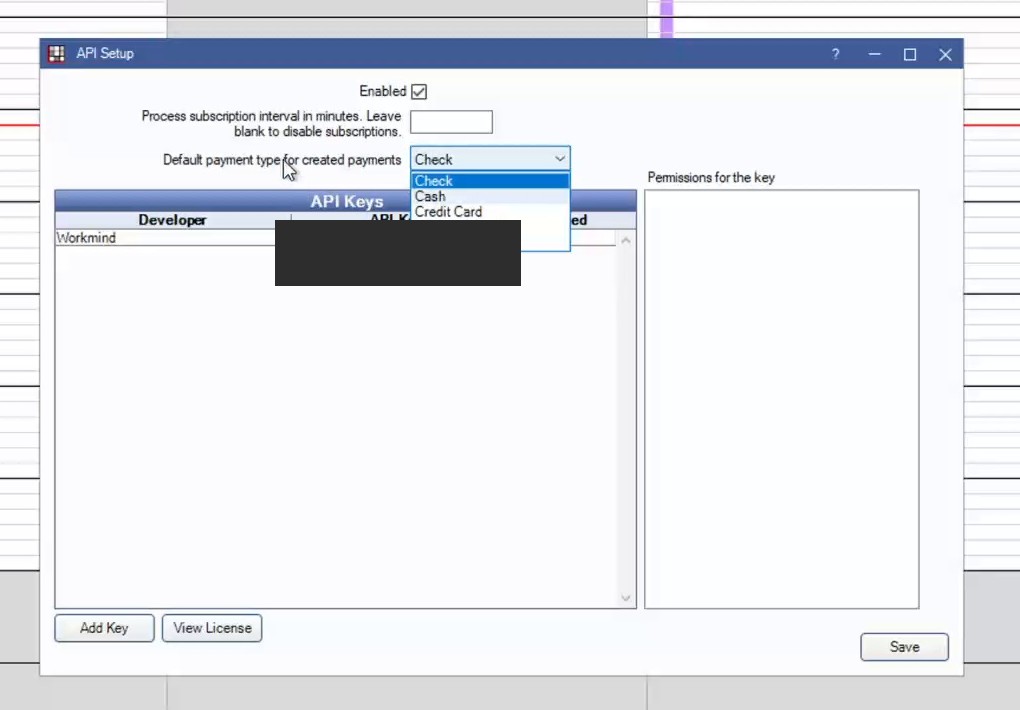
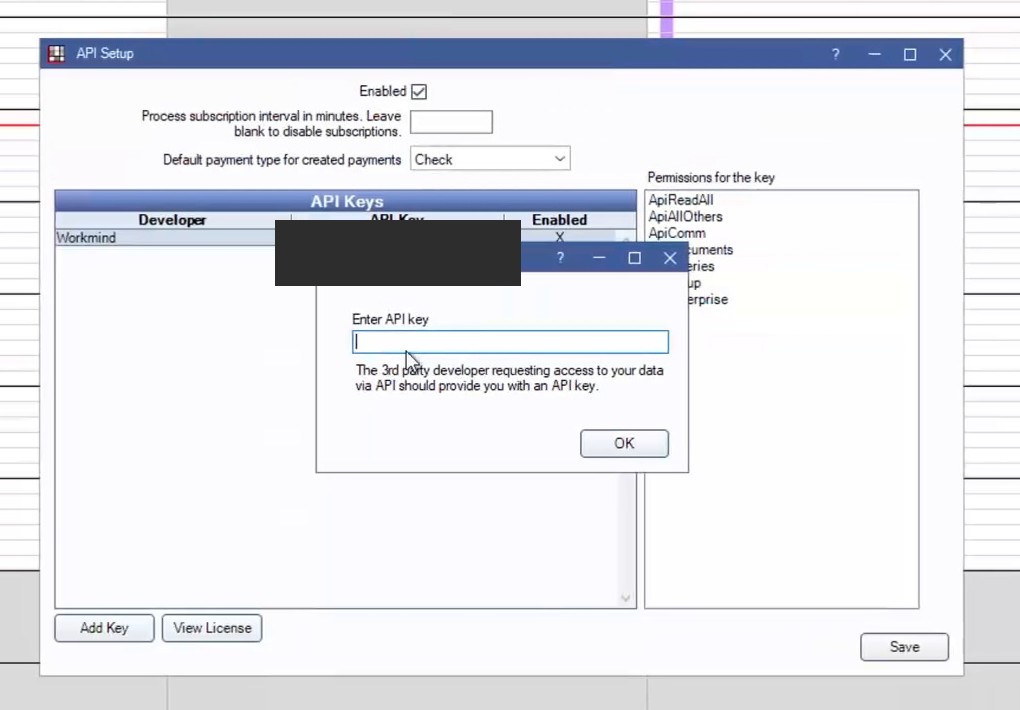
Click Add Key, paste the Customer API Key provided by WorkMind, and click OK.
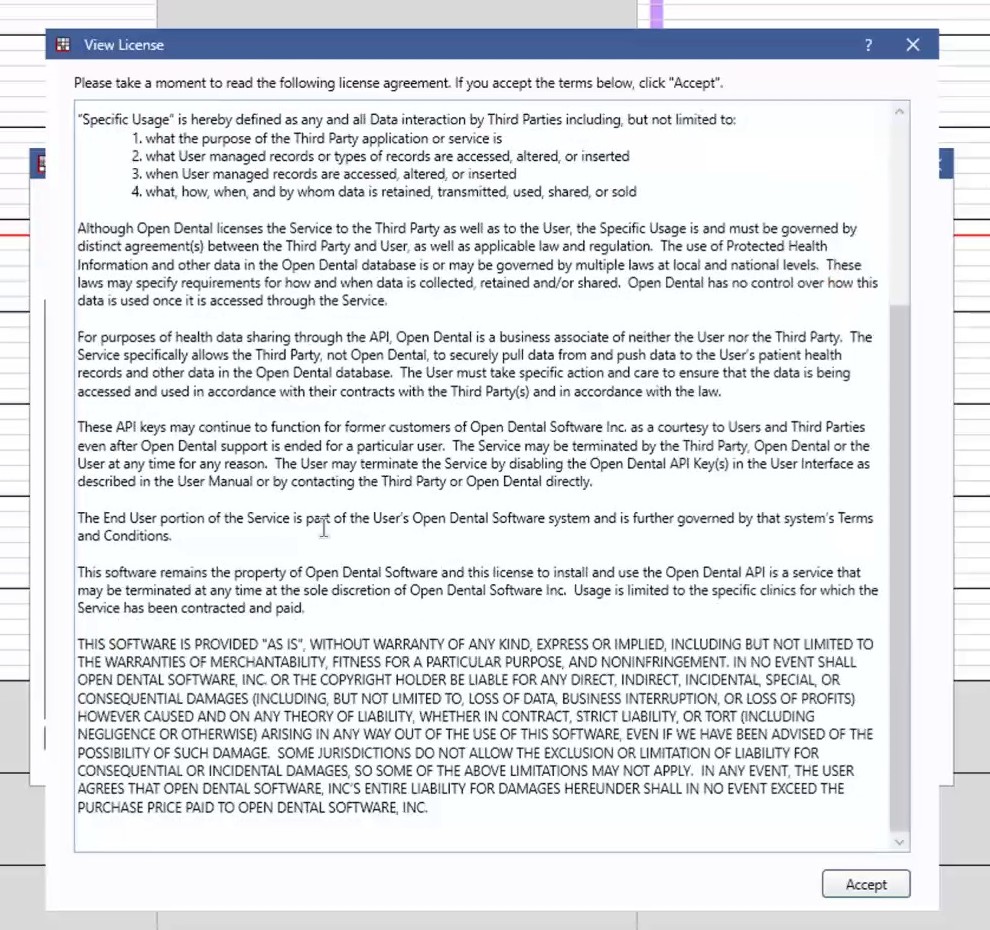
Review the Open Dental license agreement. If you are authorized to accept it for the practice, click Accept.
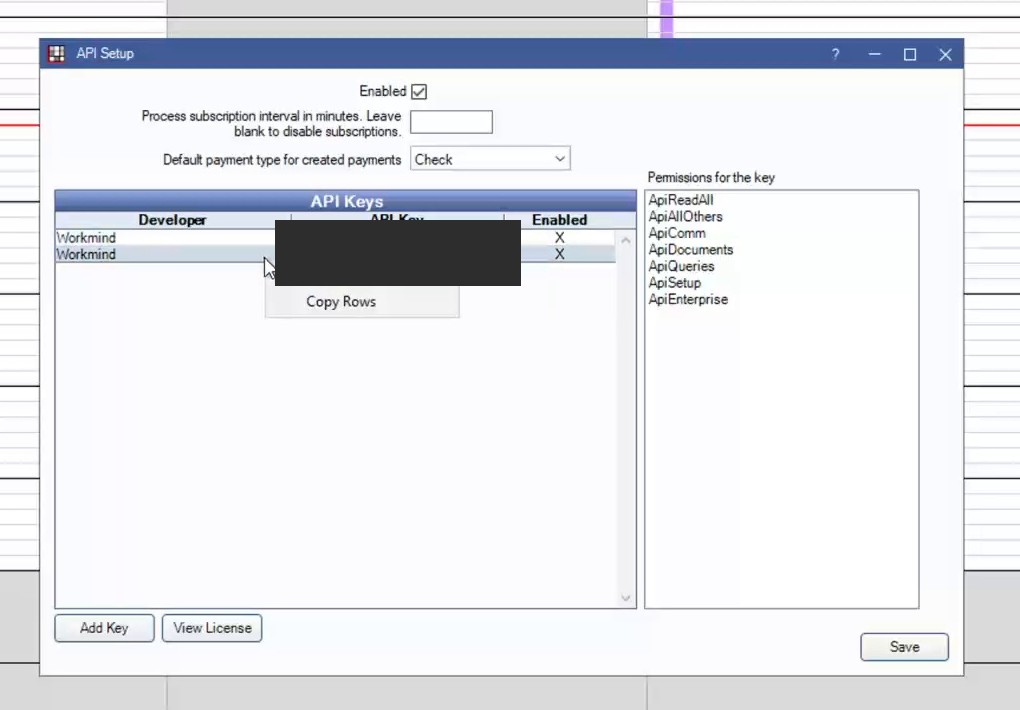
Confirm that both WorkMind API key entries appear in the list.
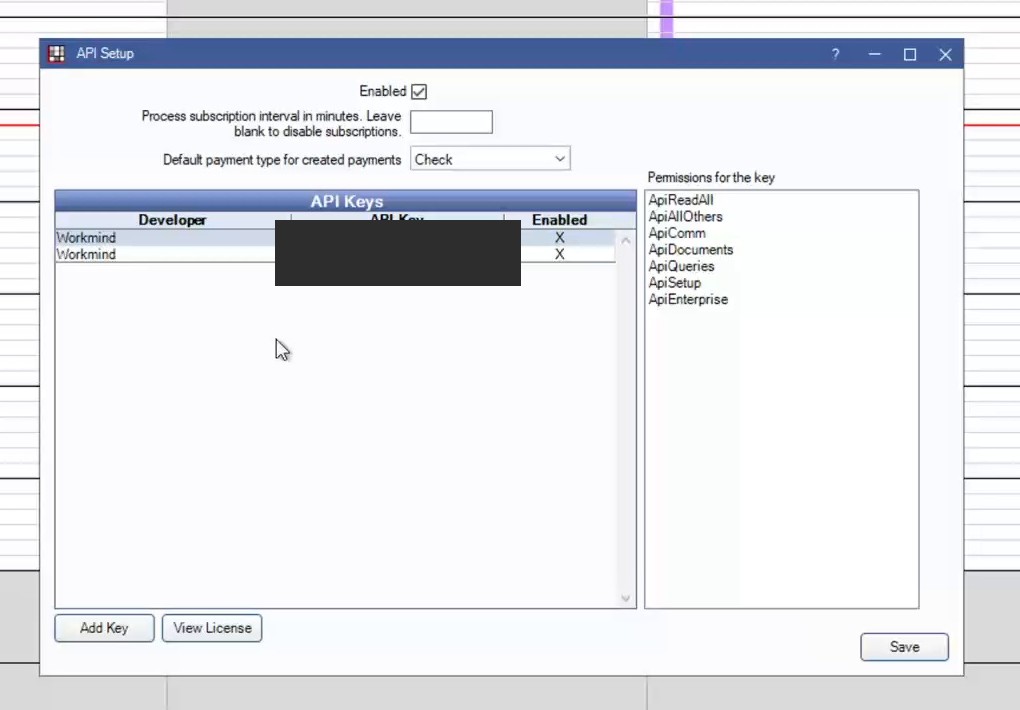
Click Save. Leave both key entries in place; do not delete or copy them from this screen.
Finish the WorkMind Connection
Return to the Open Dental connection form in WorkMind. Select the practice's Location, enter the Developer Key provided by WorkMind, and enter the same practice Customer API Key you added in Open Dental. Click Submit.